As a reseller you run your own fax business on the platform: you create an account for each of your customers, set
the retail prices they pay, hand out fax numbers, brand the app with your name, logo and web address, and turn on
HIPAA mode for customers who handle protected health information. Everything happens in the organization console at
/org. This guide covers each screen of that console and the tasks you will do most often.
Who this is for: reseller organization owners and billing admins. Day-to-day faxing inside an account is in the account guide.
Contents
- Sign in
- Find your way around
- Customers (accounts)
- Numbers
- Users and roles
- Brand and white label
- Compliance and HIPAA mode
- Billing
- Developers: API keys and webhooks
- Audit log
- Security
- Reference
Sign in
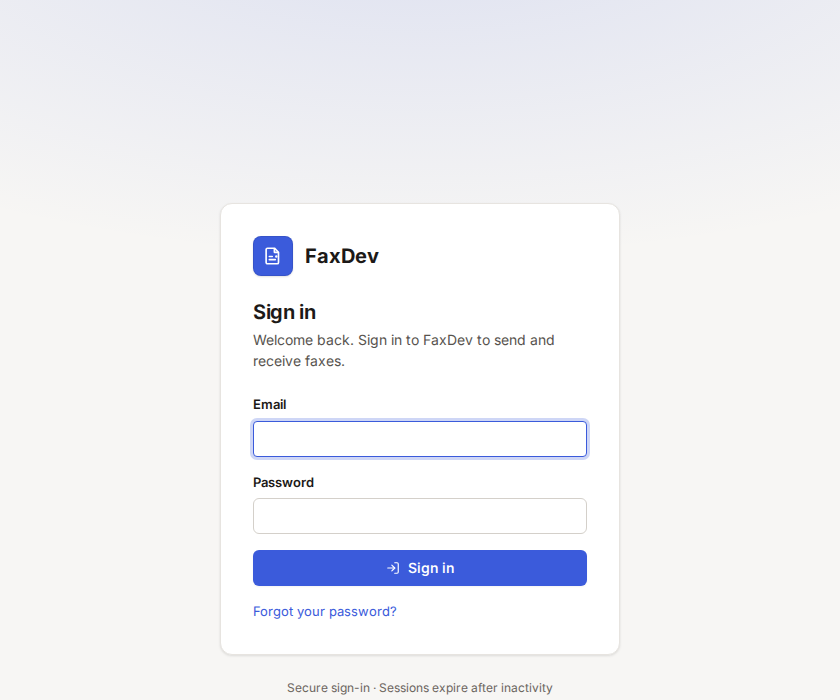
- Open your sign-in page:
https://app.faxdev.com/login, or your own web address once you have one (see Serve the app on your own web address). - Enter your email and password and choose Sign in.
- If two-step verification is on, enter the 6-digit code from your authenticator app.
Organization owners and billing admins land on /org.
 Tap to enlarge (opens in a new tab)
The sign-in page. On your own web address it shows your logo and colors.
Tap to enlarge (opens in a new tab)
The sign-in page. On your own web address it shows your logo and colors.
Forgot your password? Choose Forgot your password? on the sign-in page and follow the emailed link.
Find your way around
The sidebar has three groups:
| Group | Pages |
|---|---|
| Organization | Accounts, Numbers, Users, Brand and domains, Compliance, Audit log, Security |
| Billing | Billing, Usage, Margin, Invoices |
| Developers | API keys, Webhooks |
Your name and email are at the bottom of the sidebar, with the sign-out button.
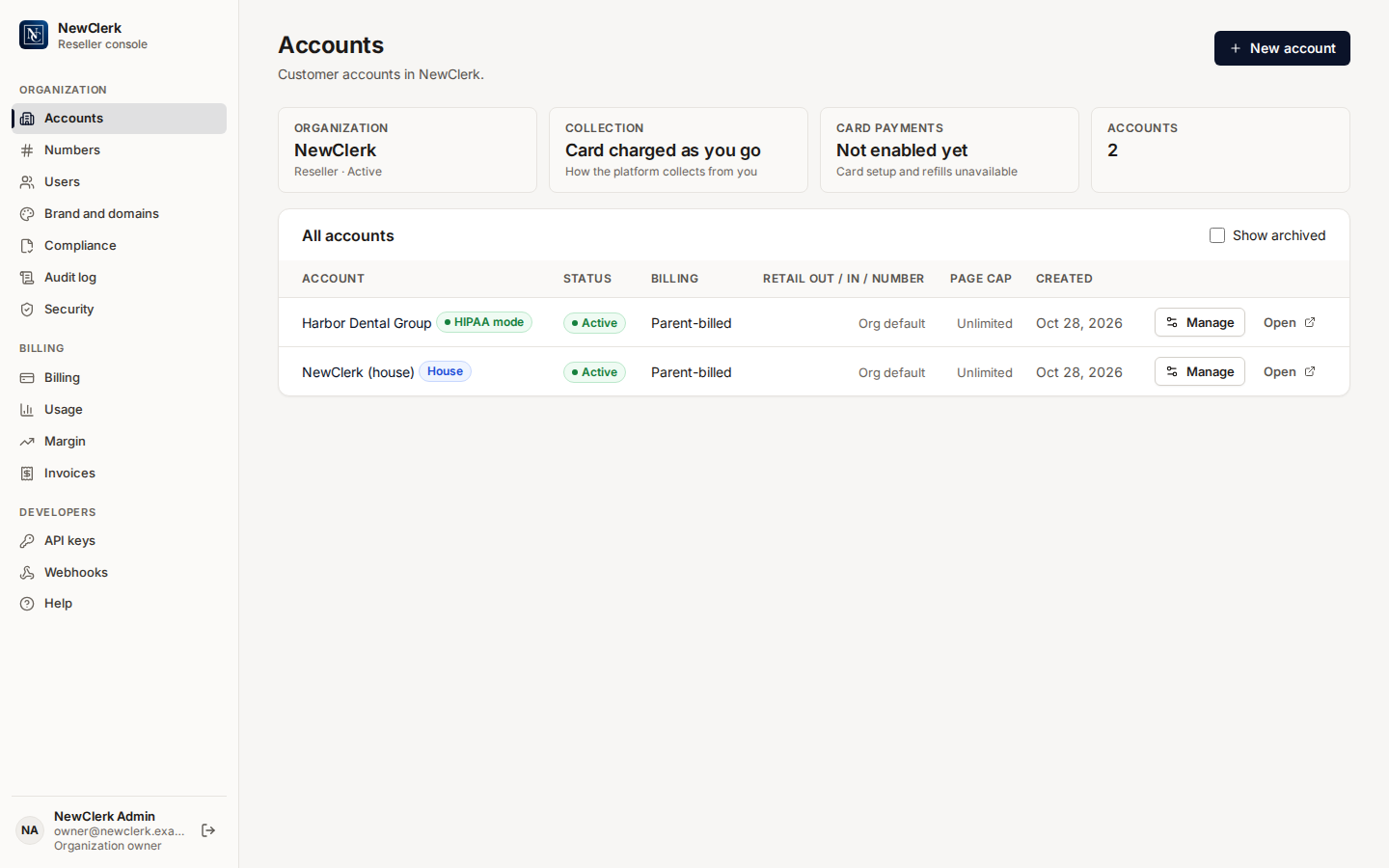
Customers (accounts)
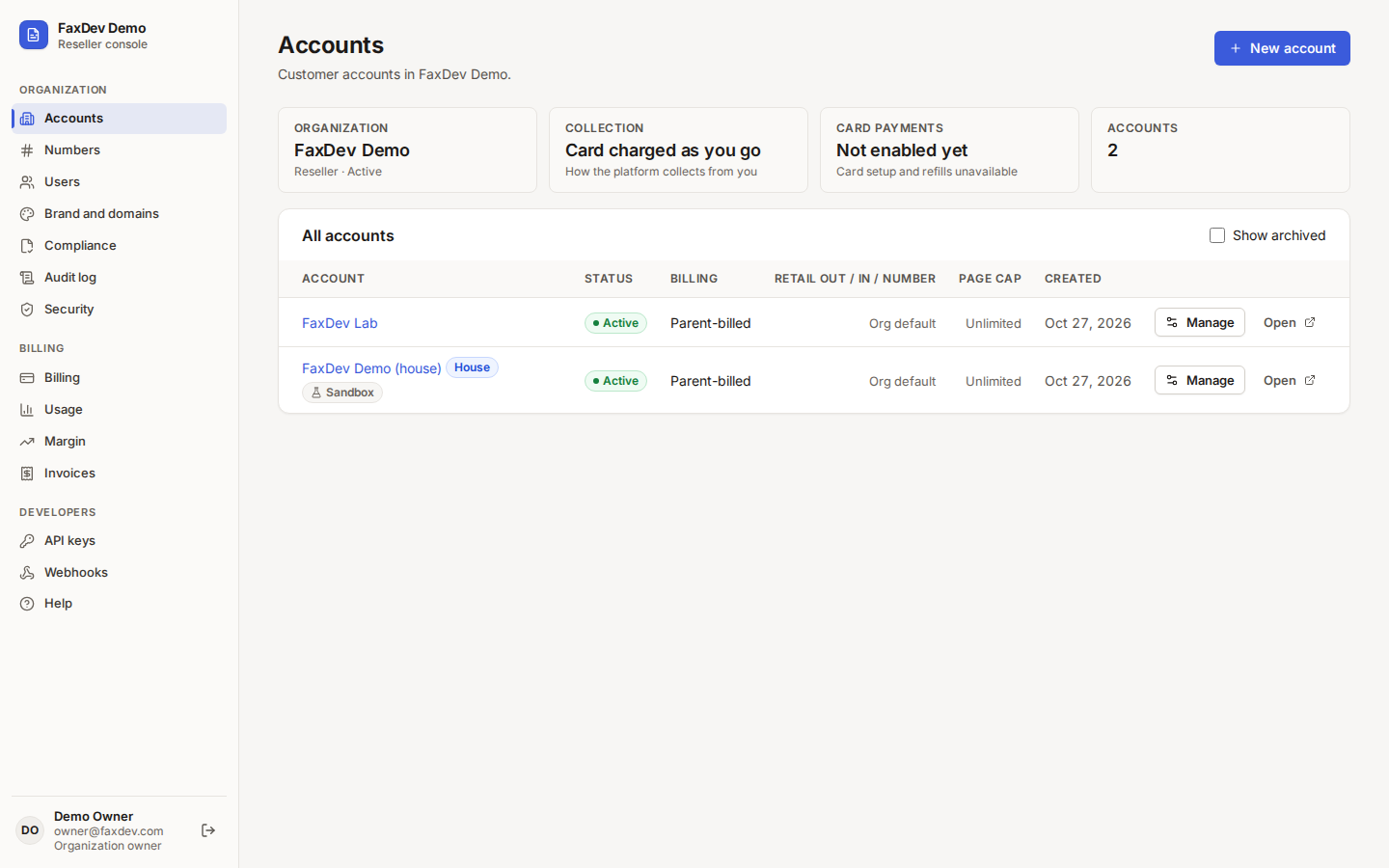
Each of your customers is an account. Your organization also has a house account for your own faxing. A Sandbox badge marks an account whose faxes complete without dialing and are never billed.
 Tap to enlarge (opens in a new tab)
Accounts: billing mode, retail prices, page cap, and quick links to manage or open each account.
Tap to enlarge (opens in a new tab)
Accounts: billing mode, retail prices, page cap, and quick links to manage or open each account.
Add a customer
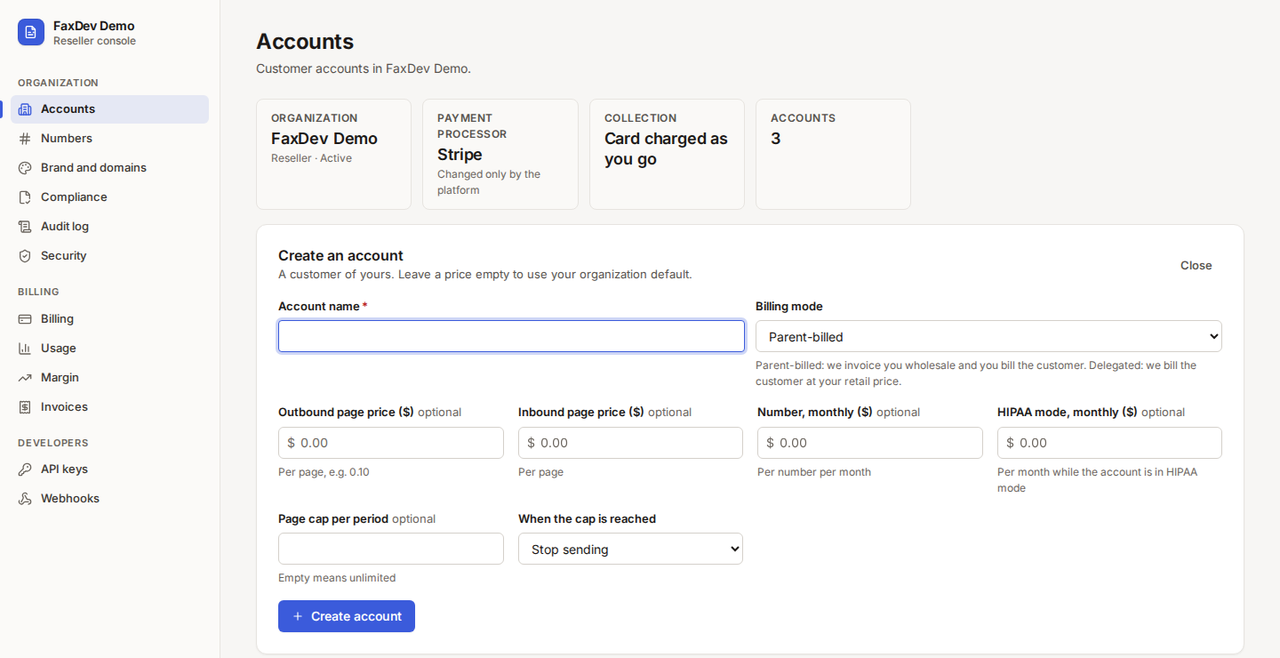
- Open Accounts and choose New account.
- Enter the Account name.
- Choose the Billing mode:
- Parent-billed: we invoice you wholesale and you bill the customer yourself.
- Delegated: we bill the customer directly at your retail price and pay you the margin.
- Optionally set the customer's retail prices: Outbound page price, Inbound page price, Number, monthly and HIPAA mode, monthly. Leave a price empty to use your organization default.
- Optionally set a Page cap per period and what happens When the cap is reached: Stop sending, or Keep sending and notify.
- Choose Create account.
 Tap to enlarge (opens in a new tab)
A new customer account. Prices left empty follow your organization default.
Tap to enlarge (opens in a new tab)
A new customer account. Prices left empty follow your organization default.
Next, assign a number and invite the customer's first user.
Set a customer's prices, caps and limits
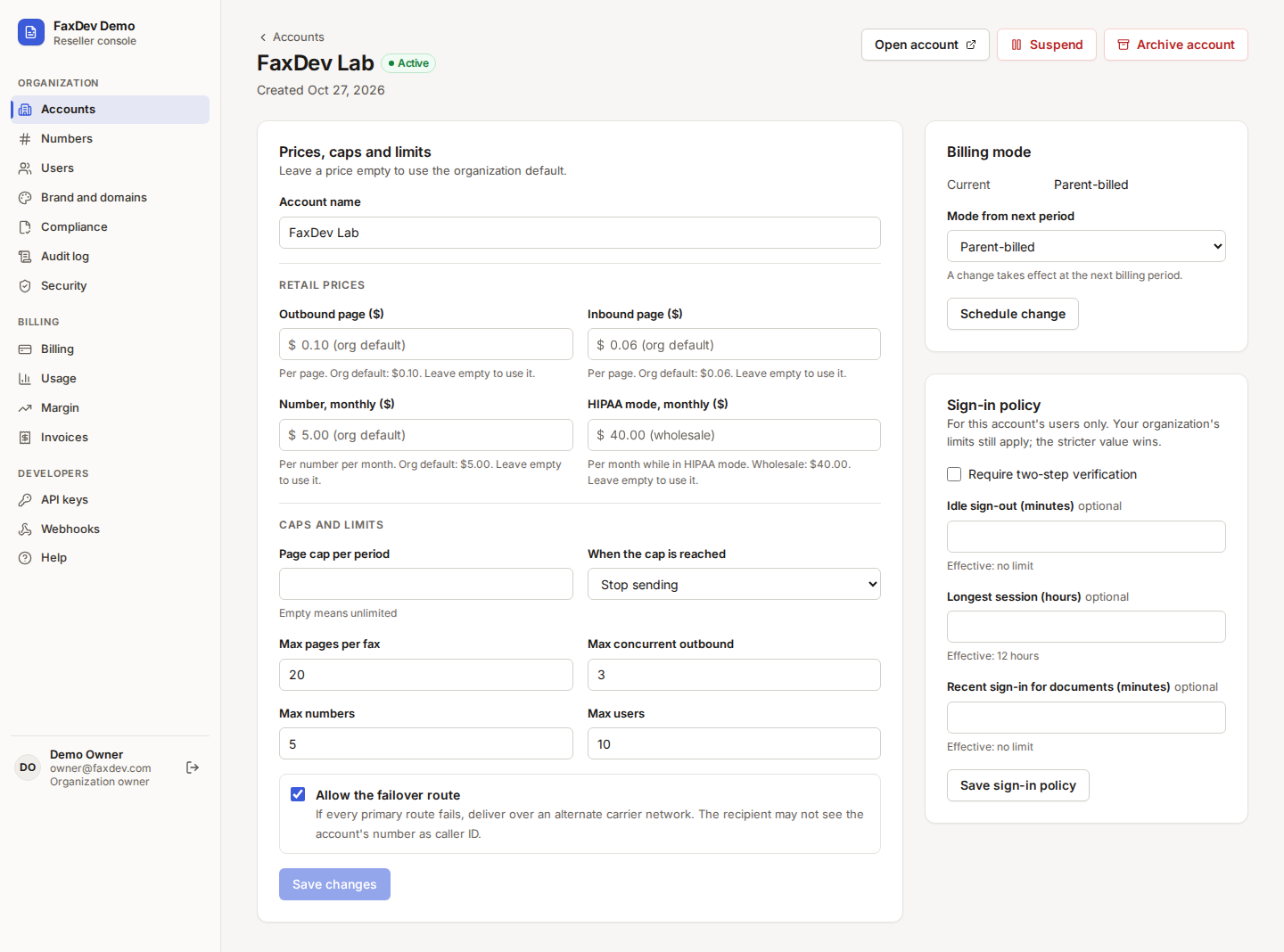
Choose Manage on the account row.
 Tap to enlarge (opens in a new tab)
Prices, caps and limits for one customer.
Tap to enlarge (opens in a new tab)
Prices, caps and limits for one customer.
| Field | Meaning |
|---|---|
| Retail prices | Outbound page, inbound page, number monthly and HIPAA mode monthly. Empty: your organization default |
| Page cap per period | Pages per billing period; empty means unlimited |
| When the cap is reached | Stop sending, or keep sending and notify |
| Max pages per fax | Longest fax the account may send |
| Max concurrent outbound | Faxes the account may send at the same time |
| Max numbers / Max users | Upper limits for the account |
| Allow the failover route | If every primary route fails, deliver over an alternate carrier network. The recipient may not see the account's number as caller ID |
Choose Save changes. The Data panel shows the account's document retention and account ID.
Change a customer's billing mode
On the account page, pick Mode from next period and choose Schedule change. The change takes effect at the next billing period.
Open a customer's account
Open on the account row (or Open account on the account page) takes you into that account's console
(/a/<accountId>) to send and read faxes, manage its numbers, users and settings. See the
account guide.
Suspend a customer
Suspend on the account page stops the account from sending. Its faxes and settings are kept.
Numbers
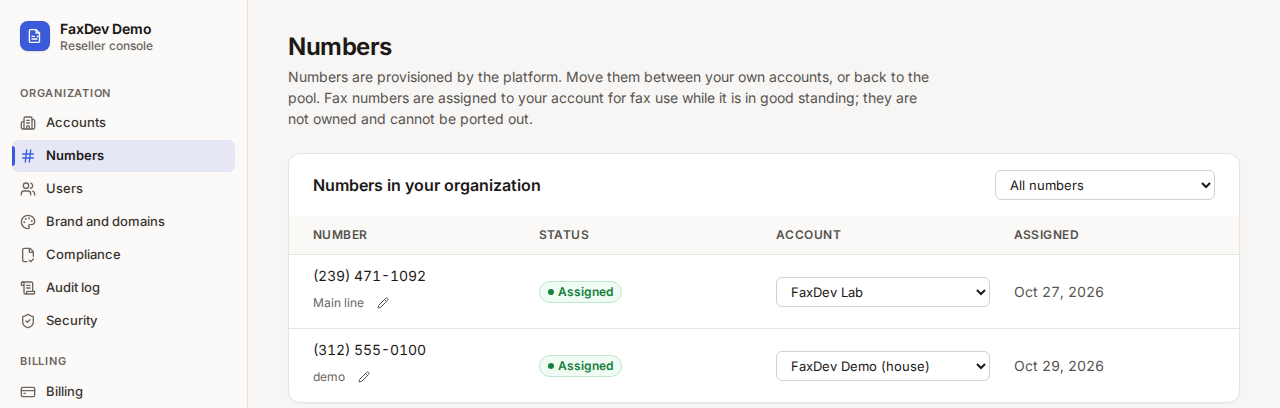
Numbers are provisioned by the platform: ask your platform contact for new numbers, and they arrive in your organization's pool or on the account you name. On Numbers you move them between your own accounts, or back to the pool.
 Tap to enlarge (opens in a new tab)
Pick an account in the Account column to move a number; choose the pool to unassign it.
Tap to enlarge (opens in a new tab)
Pick an account in the Account column to move a number; choose the pool to unassign it.
- Open Numbers. Use Show numbers for to filter by account or the pool.
- In the number's Account column, choose the account (or Unassigned (organization pool)).
Inside an account, the account admin sets each number's label and who receives its faxes by email (see the account guide).
Users and roles
Organization staff and account users are invited in different places.
Organization owners invite another organization owner or a billing admin on Users (/org/users). Users is in
the Organization group of the sidebar. Billing admins do not see it.
People who send and receive faxes sign in to one account. Invite them from that account's Users page (open the account, then Users): see the account guide.
Invite organization staff
- Open Users.
- Under Invite a user, enter Email and, optionally, Name.
- Pick the Role:
- Organization owner — everything in this console: accounts, numbers, brand, users, keys and billing.
- Billing admin — billing, usage, margin and invoices only. They cannot send faxes, change the brand or create keys.
- Choose Send invitation. They receive an email to set their password, then sign in at
/org.
Organization team lists everyone who can sign in to this console, with role and status (Invited, Active or Disabled).
- Change a role from the dropdown on the row.
- Open the row menu for Resend invitation while the status is Invited, Enable user when the person is Disabled, or Disable user otherwise.
- A disabled person cannot sign in to this console until you enable them again.
- The organization always keeps at least one active owner. That owner's role is a badge rather than a dropdown, and Disable user is not offered.
Users of accounts lists each account. Manage users opens that account's own Users page.
| Role | Where | Can |
|---|---|---|
| Organization owner | /org and every account |
Everything in the organization: accounts, billing, brand, numbers, API keys, webhooks, margin |
| Billing admin | /org |
Billing, invoices, usage, margin and statements only; no account access |
| Account admin | One account | Everything on the account, including users, keys and billing |
| User | One account | Send and read faxes, manage contacts |
| Read only | One account | Read faxes only |
Note
An organization owner invites another owner or a billing admin from Users (/org/users). Billing admins do
not see that page.
Brand and white label
Set your brand
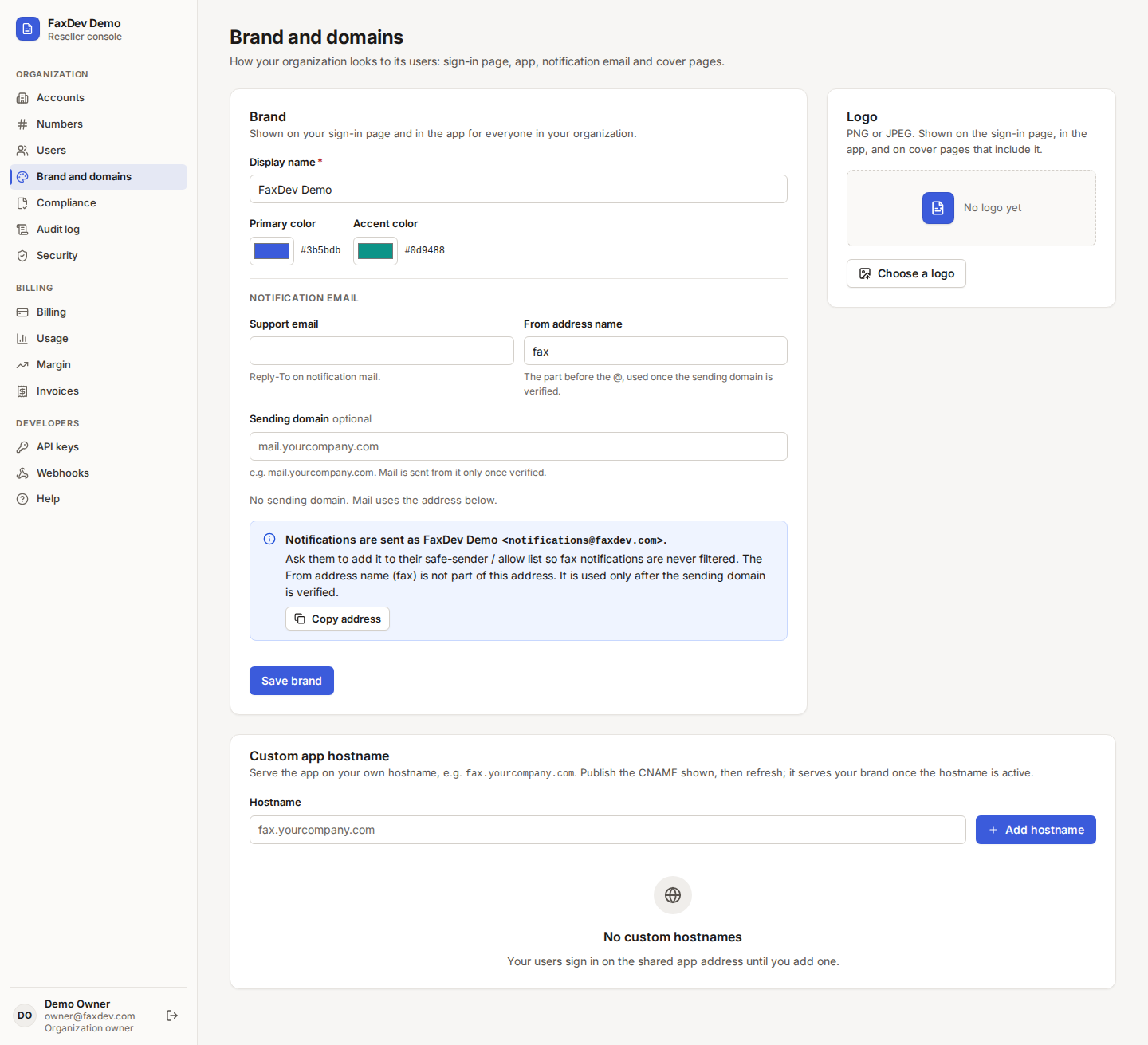
On Brand and domains:
- Enter the Display name your customers see.
- Pick the Primary color and Accent color.
- Under Notification email, enter a Support email (the Reply-To on notification mail) and the From address name (the part before the @).
- Optionally enter a Sending domain you control, such as
mg.example.com. Mail is sent from it only once it is verified; until then it goes out from the platform address with your display name. - Choose Save brand.
- Under Logo, upload a PNG or JPEG. It appears on the sign-in page, in the app, and on cover pages that include it.
 Tap to enlarge (opens in a new tab)
Your brand: name, colors, notification email, logo and your own web address.
Tap to enlarge (opens in a new tab)
Your brand: name, colors, notification email, logo and your own web address.
The blue panel shows the exact address your users receive notifications from. Ask them to add it to their safe-sender list so fax notifications are never filtered (Copy address).
Serve the app on your own web address
- Under Custom app hostname, enter a hostname you own, for example
fax.example.com, and choose Add hostname. - Choose DNS records on the new row and publish the CNAME shown at your DNS provider.
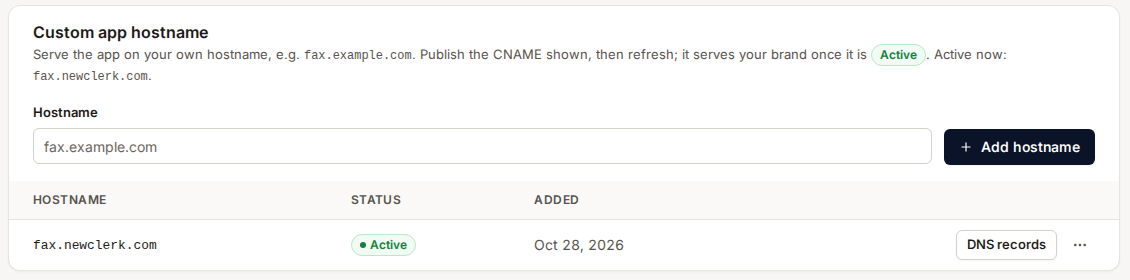
- Wait for validation, then refresh. The app serves your brand once the hostname is Active.
 Tap to enlarge (opens in a new tab)
An active custom hostname.
Tap to enlarge (opens in a new tab)
An active custom hostname.
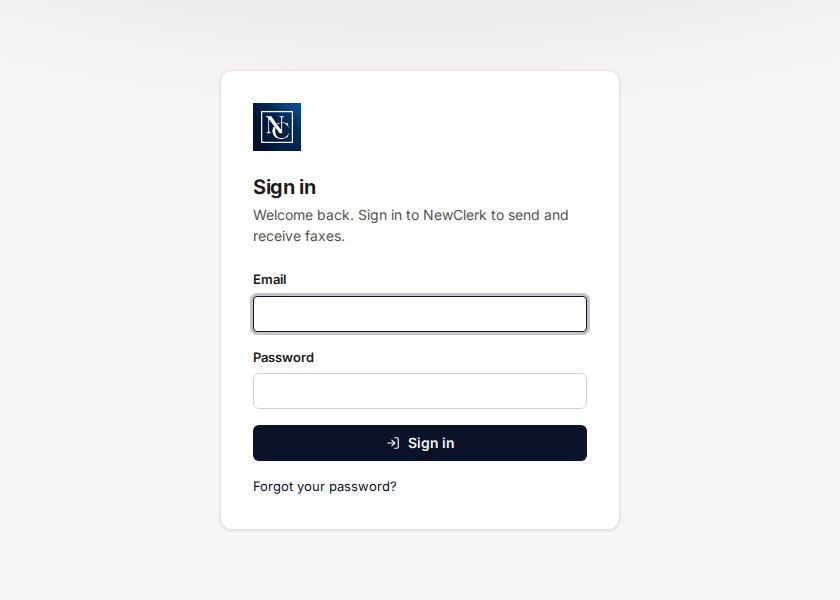
On your hostname, the sign-in page shows your logo and colors, and only your organization's users can sign in.
 Tap to enlarge (opens in a new tab)
The sign-in page on a reseller's own hostname.
Tap to enlarge (opens in a new tab)
The sign-in page on a reseller's own hostname.
 Tap to enlarge (opens in a new tab)
The whole console follows your brand on your hostname.
Tap to enlarge (opens in a new tab)
The whole console follows your brand on your hostname.
A custom hostname is billed per active hostname per month (see Billing).
Compliance and HIPAA mode
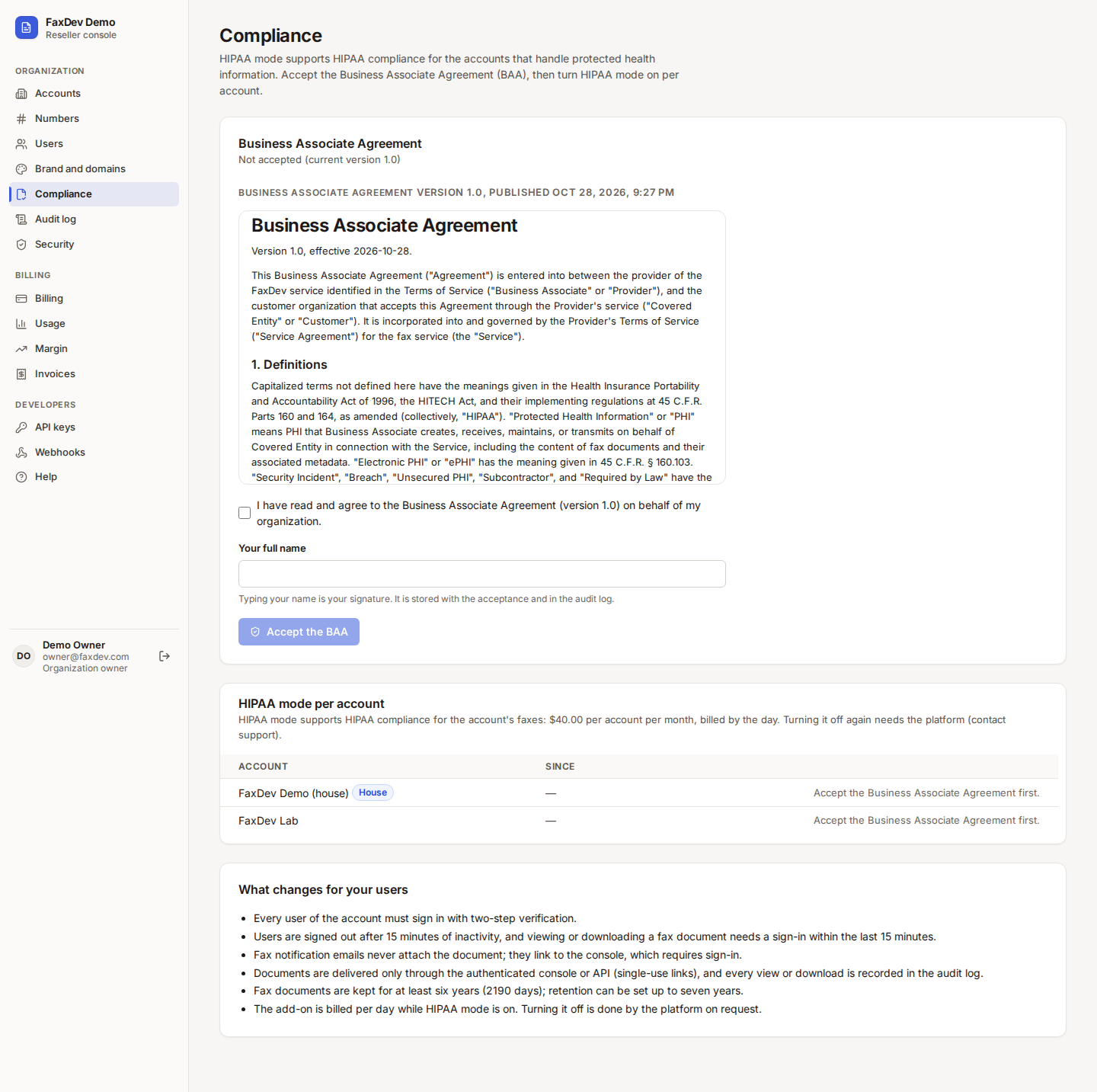
HIPAA mode gives an account HIPAA-ready controls for faxes that carry protected health information. You accept the Business Associate Agreement (BAA) once for your organization, then turn HIPAA mode on per account.
 Tap to enlarge (opens in a new tab)
Compliance: read and accept the BAA, then enable HIPAA mode account by account.
Tap to enlarge (opens in a new tab)
Compliance: read and accept the BAA, then enable HIPAA mode account by account.
Accept the BAA
- Open Compliance and read the agreement.
- Tick I have read and agree…, type Your full name (your signature) and choose Accept the BAA.
- Download the accepted copy gives you the text with the acceptance record (version, fingerprint, time).
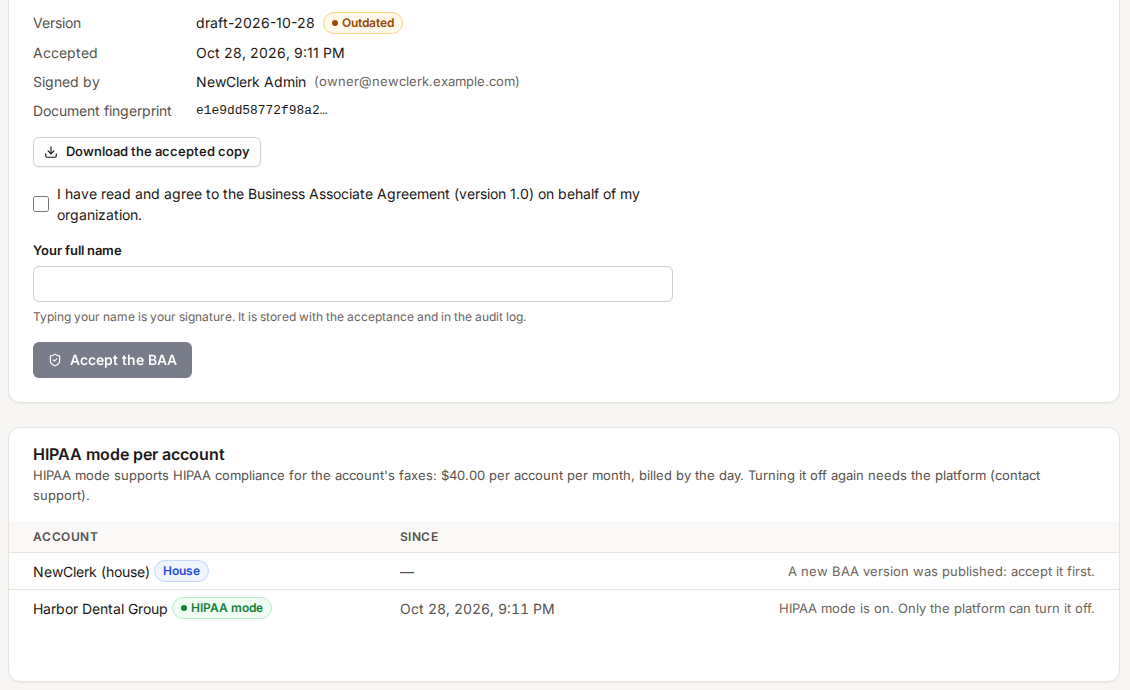
Only an organization owner signed in as themselves can accept; when a new BAA version is published, accept it before enabling HIPAA mode on another account. Accounts already in HIPAA mode stay on.
Turn on HIPAA mode for an account
- Under HIPAA mode per account, choose Enable HIPAA mode on the account's row.
- Confirm. The account shows the HIPAA mode badge.
 Tap to enlarge (opens in a new tab)
HIPAA mode per account. Turning it off again is done by the platform on request.
Tap to enlarge (opens in a new tab)
HIPAA mode per account. Turning it off again is done by the platform on request.
What changes for the account's users:
- Every user must sign in with two-step verification.
- Users are signed out after 15 minutes of inactivity, and viewing or downloading a fax needs a sign-in within the last 15 minutes.
- Fax notification emails never attach the document; they link to the console, which requires sign-in.
- Documents are delivered only through the signed-in console or the API (single-use links), and every view or download is recorded in the audit log.
- Fax documents are kept for at least six years (2190 days); retention can be set up to seven years.
- The HIPAA add-on is billed per day while HIPAA mode is on.
Warning HIPAA mode provides controls that support your HIPAA compliance; it does not make you compliant on its own. Your own policies, staff training and agreements with your customers remain your responsibility.
Billing
How you are billed
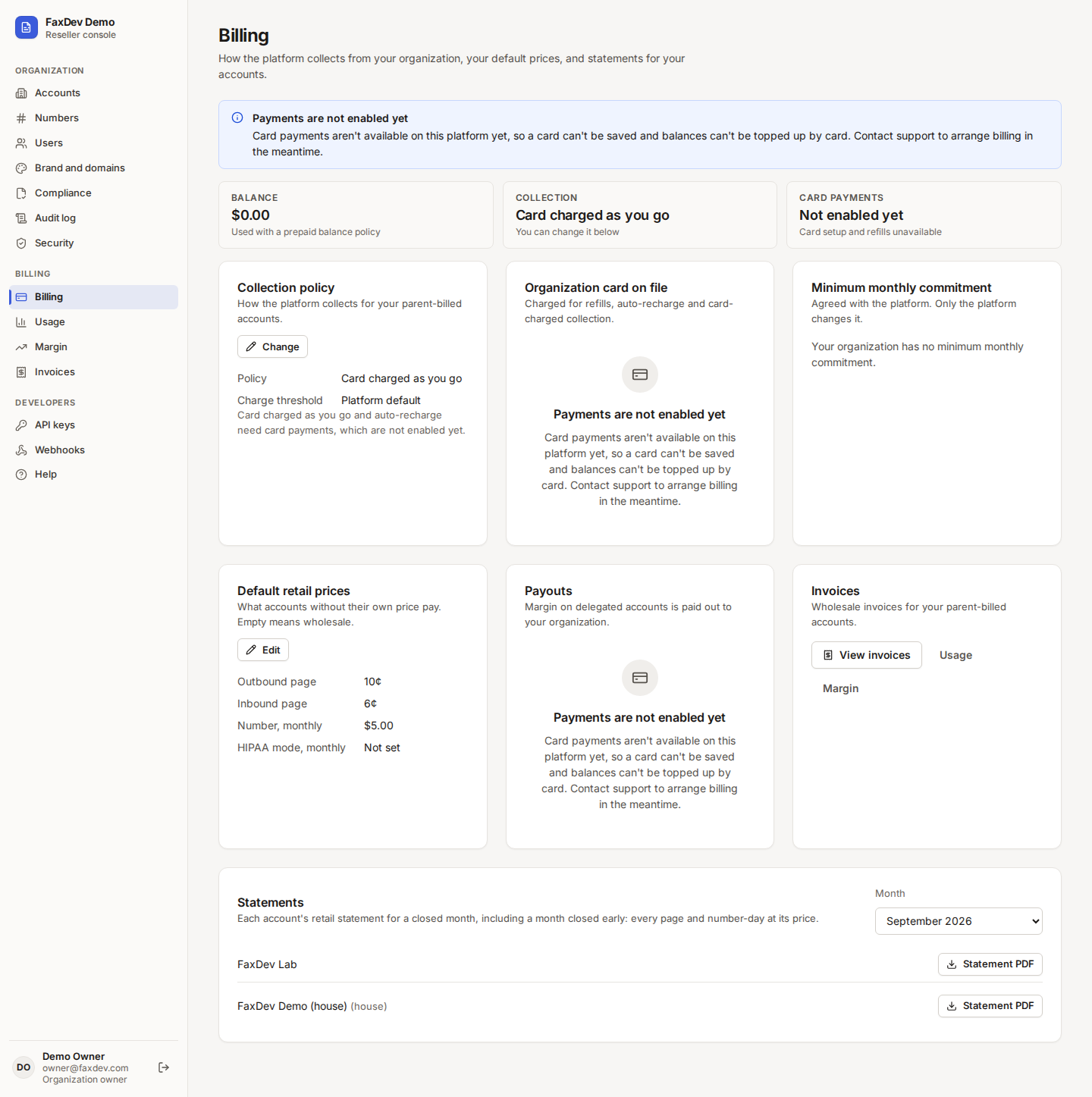
Billing shows your Collection method (changed only by the platform, at a period boundary), whether card payments are enabled, and, depending on your plan:
- Organization card on file: add or replace the card used for your charges.
- Add funds to the organization balance: on a prepaid balance, refill it with a preset or custom amount. Faxes on parent-billed accounts are refused when it runs out.
- Minimum monthly commitment: if one was agreed with the platform, the commitment, what you have used so far and the projected shortfall. If a month's charges come to less, the difference is added at period close.
 Tap to enlarge (opens in a new tab)
Billing. The cards shown depend on your collection method and agreement.
Tap to enlarge (opens in a new tab)
Billing. The cards shown depend on your collection method and agreement.
| Collection | What happens |
|---|---|
| Prepaid balance | Charges come out of your balance; refill it on this page. Faxes are refused when it is empty |
| Card charged as you go | Your card is charged automatically as charges build up |
| Invoiced after the period | You receive an invoice after each billing period, within an agreed credit limit |
Retail pricing and margin
You set what your customers pay: an organization default (agreed with the platform) and, optionally, a price per account. What you pay the platform is the wholesale price.
- Parent-billed accounts: you collect retail from your customer yourself; the platform invoices you wholesale and pays no margin.
- Delegated accounts: the platform collects retail from your customer and transfers the margin to you.
Margin shows, for a month, what your accounts paid at retail against what you pay wholesale, by account.
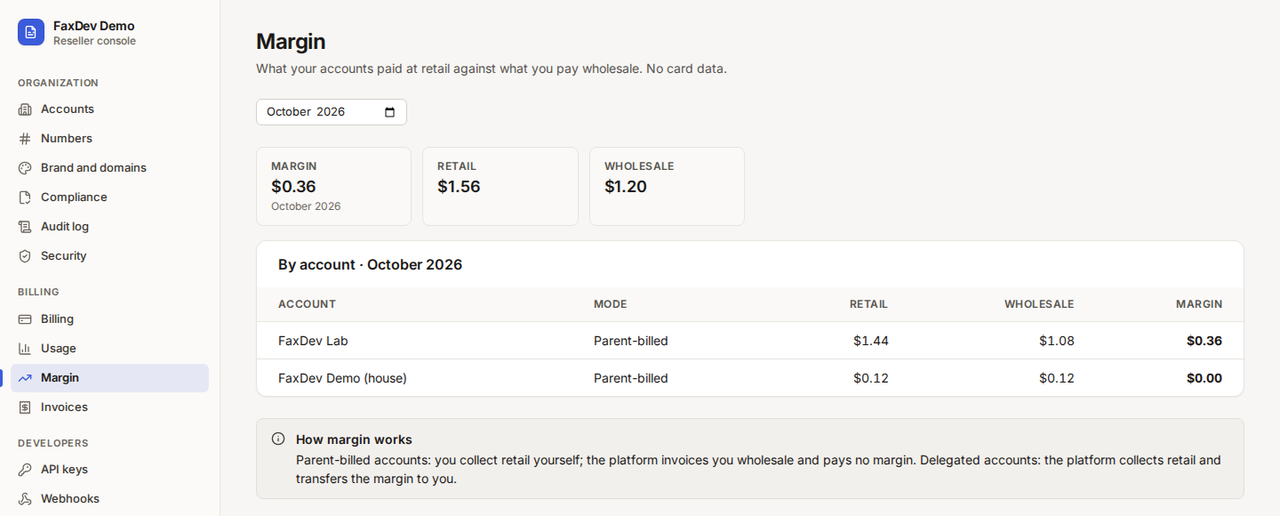 Tap to enlarge (opens in a new tab)
Margin by account for a billing period.
Tap to enlarge (opens in a new tab)
Margin by account for a billing period.
Usage
Usage lists pages sent, pages received and number rental per account for a billing period, with retail, what each payer owes and wholesale.
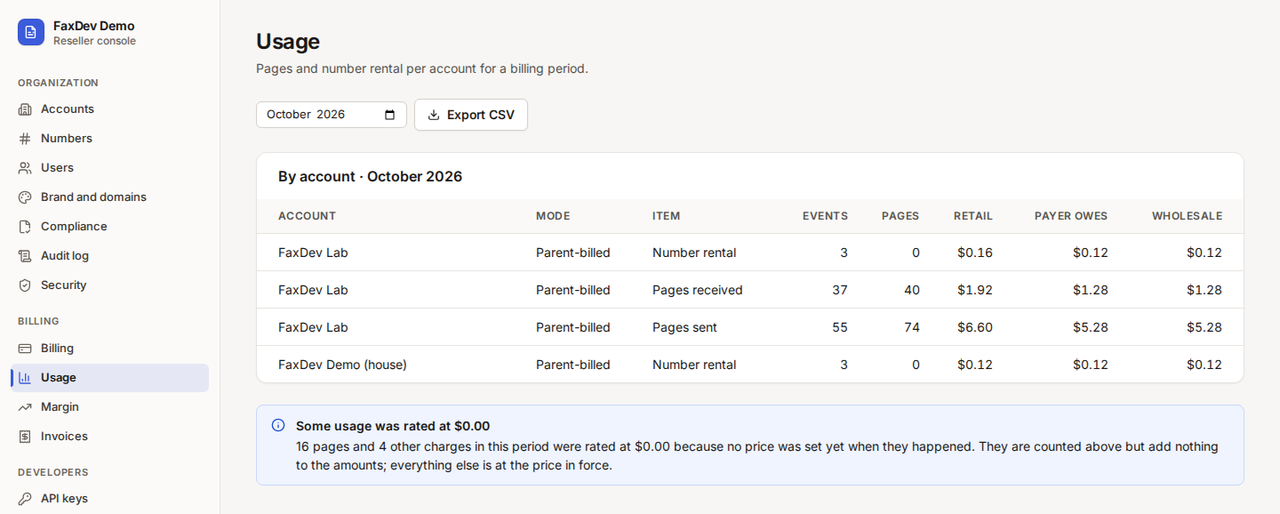 Tap to enlarge (opens in a new tab)
Usage per account for the selected month.
Tap to enlarge (opens in a new tab)
Usage per account for the selected month.
Invoices and statements
Invoices lists your wholesale invoices for parent-billed accounts, with the processor in force. Invoices appear after each billing period closes.
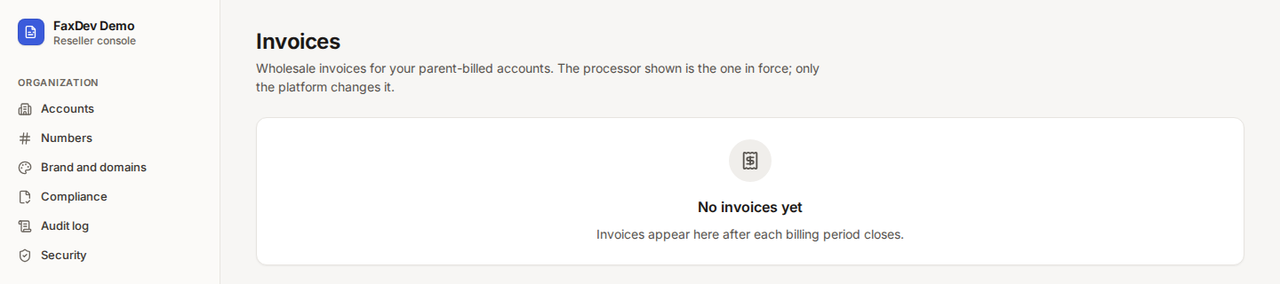 Tap to enlarge (opens in a new tab)
Wholesale invoices appear after each period close.
Tap to enlarge (opens in a new tab)
Wholesale invoices appear after each period close.
A retail statement (a PDF of every rated page and number-day of one account at its retail price, ready to hand
to your customer) is available for each ended month through the API:
GET /v1/org/accounts/{accountId}/statements/{YYYY-MM}. There is no download button in the console yet.
Developers: API keys and webhooks
API keys let your software call the API and the MCP server. Organization keys can carry account scopes and
organization scopes (org:accounts, org:brand, org:domains, org:dids, org:billing, org:webhooks,
org:keys).
- Enter a Label so you can tell keys apart, and optionally a Source CIDR (requests from outside this range are refused).
- Tick the Scopes the key needs, no more.
- Choose Create key and copy the key at once: it is shown only once.
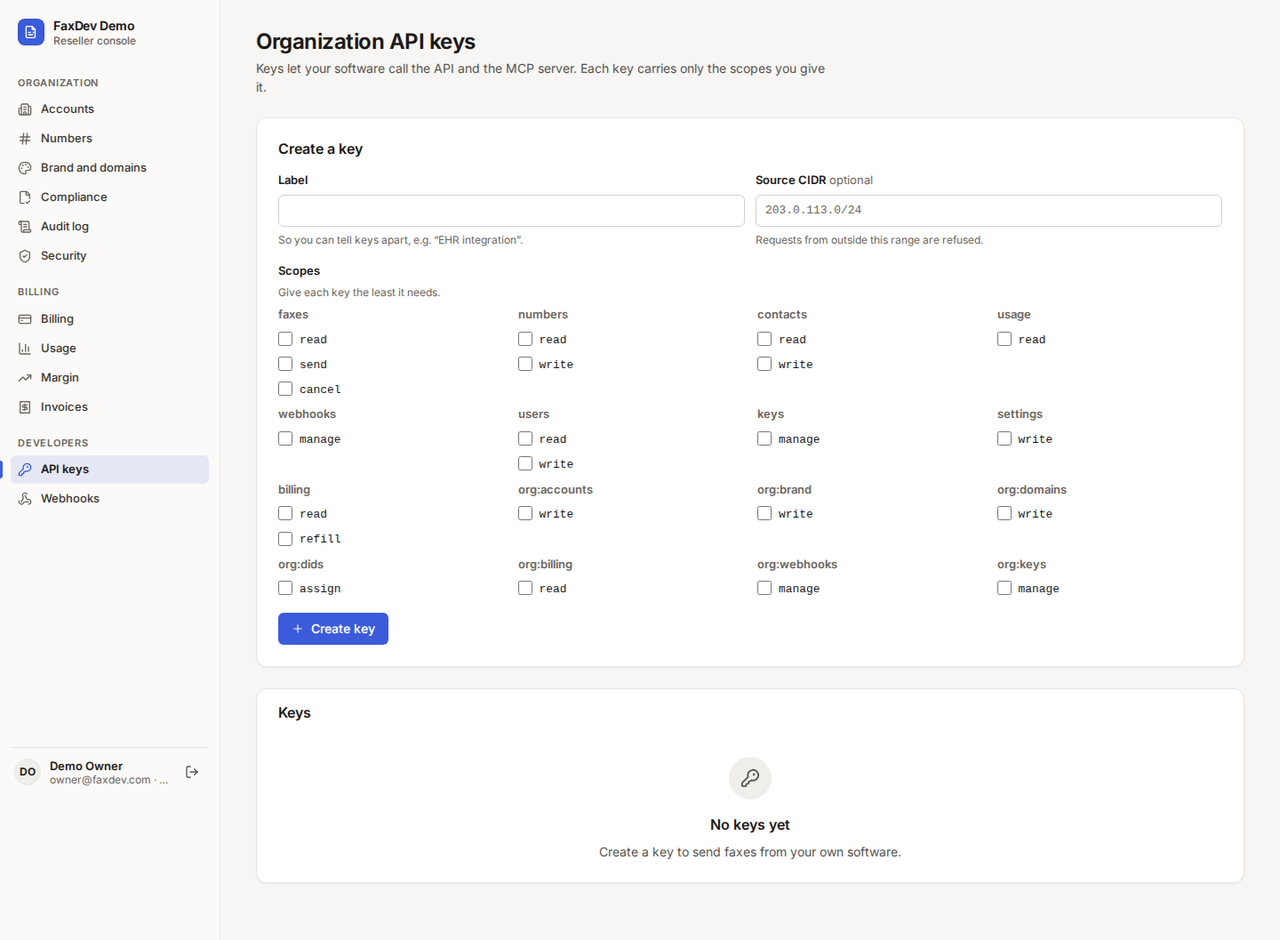 Tap to enlarge (opens in a new tab)
Give each key the least it needs.
Tap to enlarge (opens in a new tab)
Give each key the least it needs.
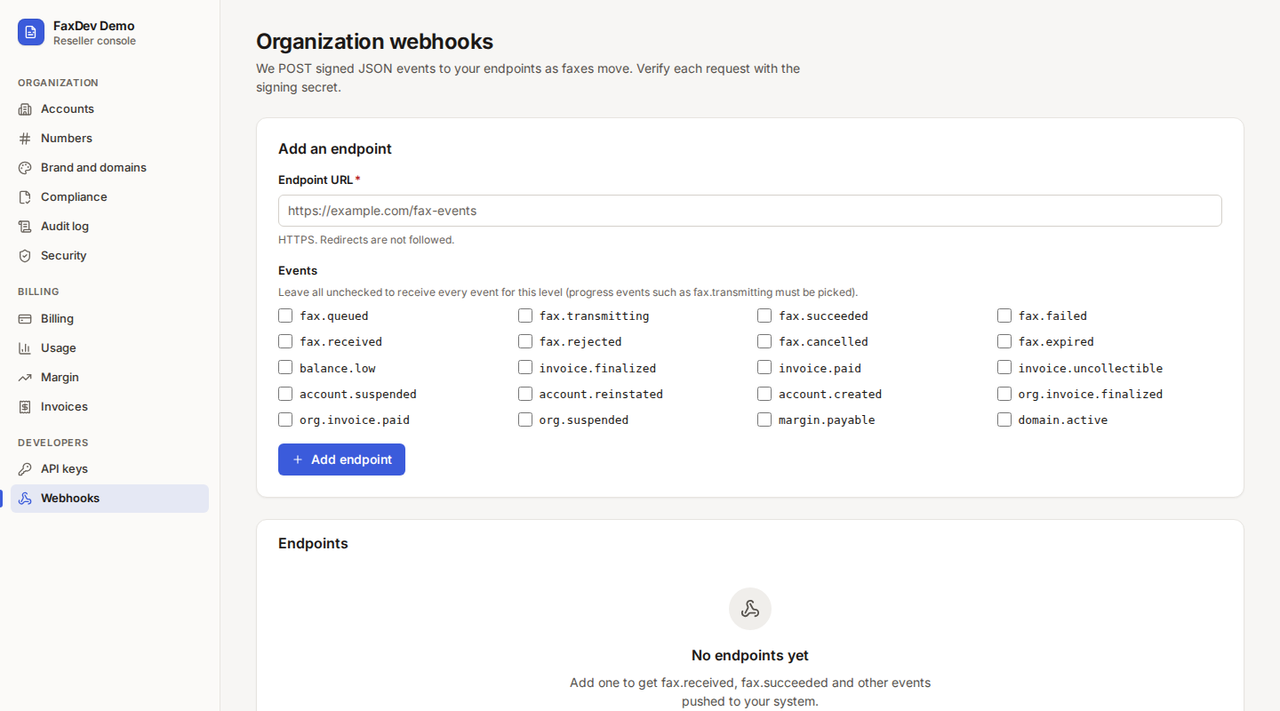
Webhooks send signed JSON events to your HTTPS endpoint as faxes move and as billing and account events happen.
- Enter the Endpoint URL (HTTPS; redirects are not followed).
- Pick events, or leave all unchecked to receive every event for this level (progress events such as
fax.transmittingmust be picked). - Choose Add endpoint and keep the signing secret to verify each request.
 Tap to enlarge (opens in a new tab)
Organization webhooks: fax, invoice, account, margin and domain events.
Tap to enlarge (opens in a new tab)
Organization webhooks: fax, invoice, account, margin and domain events.
Audit log
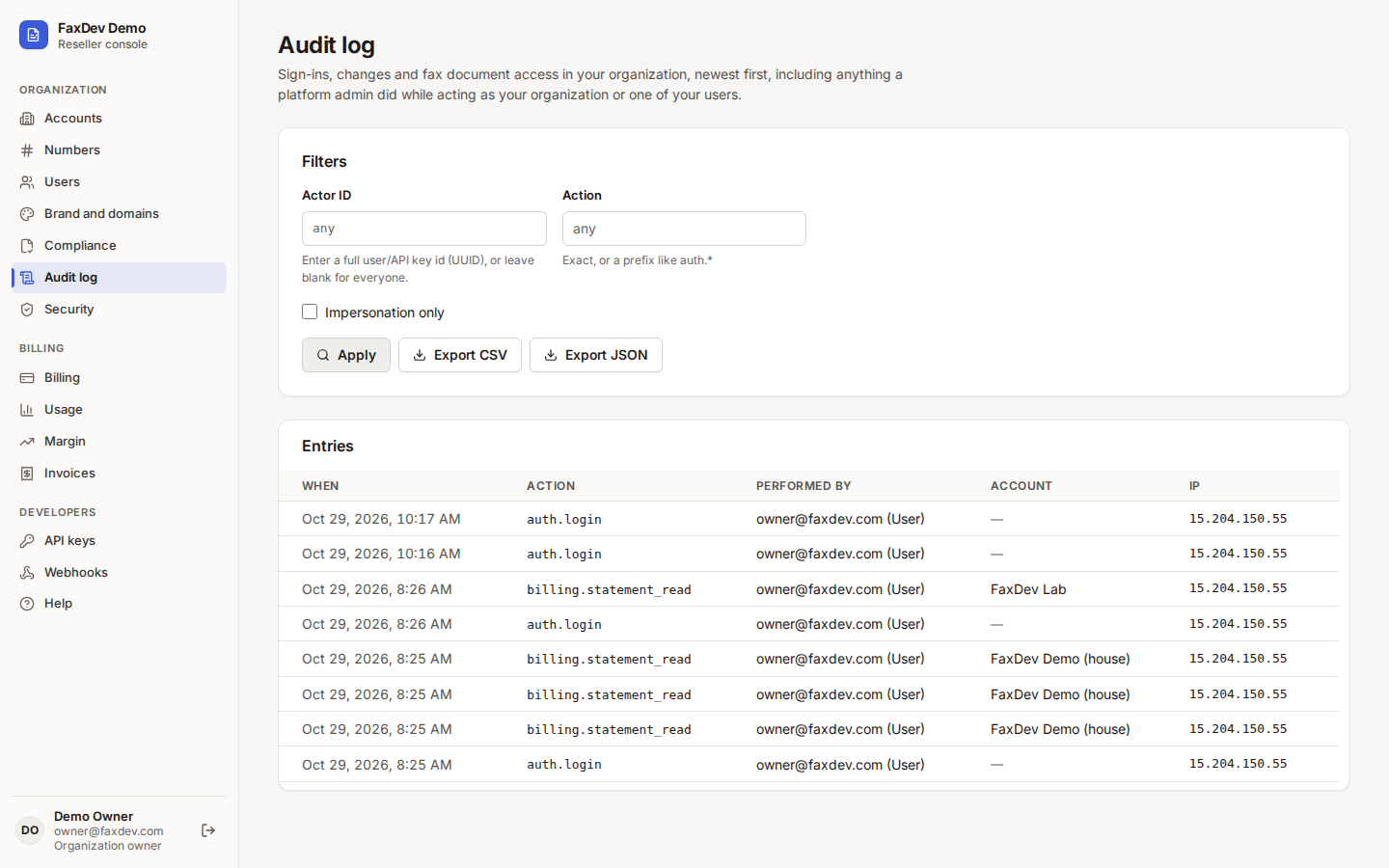
Audit log lists sign-ins, changes and fax document access in your organization, newest first, including anything
a platform admin did while acting as your organization or one of your users. Filter by actor ID, action (exact, or a
prefix such as auth.*) and Impersonation only. Export CSV and Export JSON download the filtered
entries.
 Tap to enlarge (opens in a new tab)
Who did what, on which account, from which IP address.
Tap to enlarge (opens in a new tab)
Who did what, on which account, from which IP address.
Security
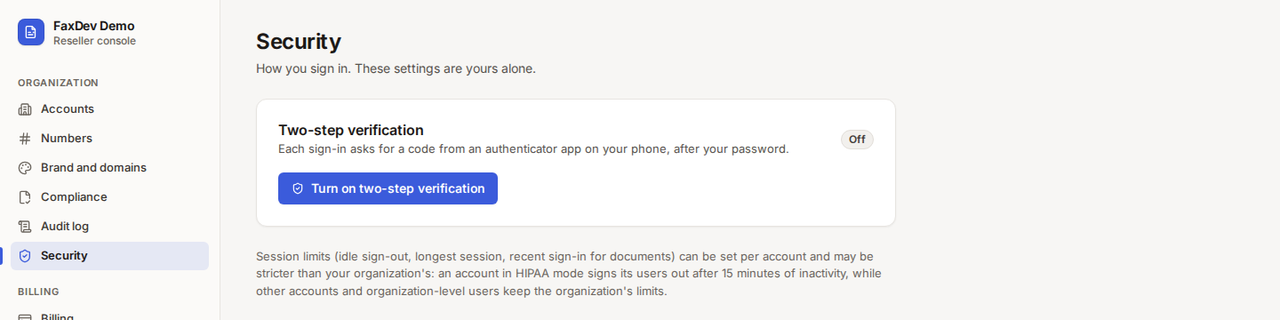
Security is about your own sign-in. Turn on two-step verification:
- Choose Turn on two-step verification.
- Scan the QR code with an authenticator app (or show the setup key and type it), then enter the 6-digit code.
- Save the ten recovery codes somewhere safe: they are shown once. Each works once if you lose your phone.
 Tap to enlarge (opens in a new tab)
Two-step verification for your own login.
Tap to enlarge (opens in a new tab)
Two-step verification for your own login.
Session limits (idle sign-out, longest session, recent sign-in for documents) can be set per account and may be stricter than your organization's; an account in HIPAA mode signs its users out after 15 minutes of inactivity.
Reference
Account fields
| Field | Values | Default |
|---|---|---|
| Billing mode | Parent-billed, Delegated | Parent-billed |
| Outbound / inbound page price | Dollars per page | Organization default |
| Number, monthly | Dollars per number per month | Organization default |
| HIPAA mode, monthly | Dollars per month while in HIPAA mode | Organization default |
| Page cap per period | Pages, or empty for unlimited | Unlimited |
| When the cap is reached | Stop sending; Keep sending and notify | Stop sending |
| Allow the failover route | On or off | Set by your plan |
Statuses
| Badge | Meaning |
|---|---|
| Active | The account or organization can send and receive |
| Suspended | Stopped by you or the platform; faxes and settings are kept |
| Suspended (billing) | Stopped because a payment is overdue or the balance is empty |
| House | Your own account inside your organization |
| Sandbox | Faxes complete without dialing and are never billed |
| HIPAA mode | The account has HIPAA mode on |
| Assigned / pool | A number is on an account, or waiting in your organization's pool |
Webhook events (organization level)
| Group | Events |
|---|---|
| Faxes | fax.queued, fax.transmitting, fax.succeeded, fax.failed, fax.received, fax.rejected, fax.cancelled, fax.expired |
| Billing | balance.low, invoice.finalized, invoice.paid, invoice.uncollectible, org.invoice.finalized, org.invoice.paid, margin.payable |
| Accounts and organization | account.created, account.suspended, account.reinstated, org.suspended, domain.active |