Your account is where faxing happens: faxes sent to your numbers arrive in the inbox, you send faxes from the web
(or by email, or from your own software), and you decide who on your team can do what. This guide covers every page
of the account console at /a/<accountId>, from reading your first fax to setting retention and two-step
verification.
Who this is for: account admins, users and read-only members of an account, whether the account belongs to a reseller's customer or to a direct organization.
Contents
- Sign in
- Find your way around
- Read received faxes
- Send a fax
- Track sent faxes
- Contacts
- Numbers and inbound email
- Notifications
- Users and roles
- Usage and billing
- Account settings
- Security: two-step verification and sessions
- Developers: API keys and webhooks
- Reference
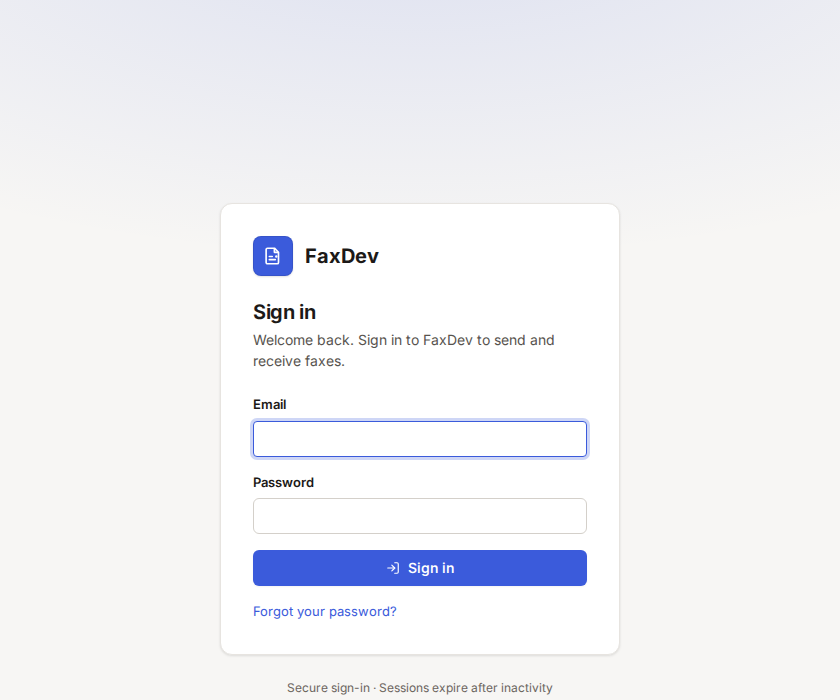
Sign in
- Open the sign-in page you were given (for example
https://app.faxdev.com/login, or your provider's own web address). - Enter your email and password and choose Sign in.
- If two-step verification is on, enter the 6-digit code from your authenticator app.
You land on your account's Inbox.
 Tap to enlarge (opens in a new tab)
The sign-in page. Your provider's page may show its own logo and colors.
Tap to enlarge (opens in a new tab)
The sign-in page. Your provider's page may show its own logo and colors.
New here? Your invitation email has a link to set your password (/accept-invite). Forgot it? Choose Forgot your
password? on the sign-in page.
Find your way around
| Sidebar group | Pages | Who sees them |
|---|---|---|
| Faxes | Inbox (with the unread count), Sent, Send a fax, Contacts | Everyone (read-only members cannot send) |
| Account | Numbers, Notifications, Security, Users, Usage, Billing, Settings | Users, Billing and Settings: account admins only |
| Developers | API keys, Webhooks | Account admins |
Your name and email are at the bottom of the sidebar with the sign-out button. On a phone, the menu button at the top left opens the sidebar.
Read received faxes
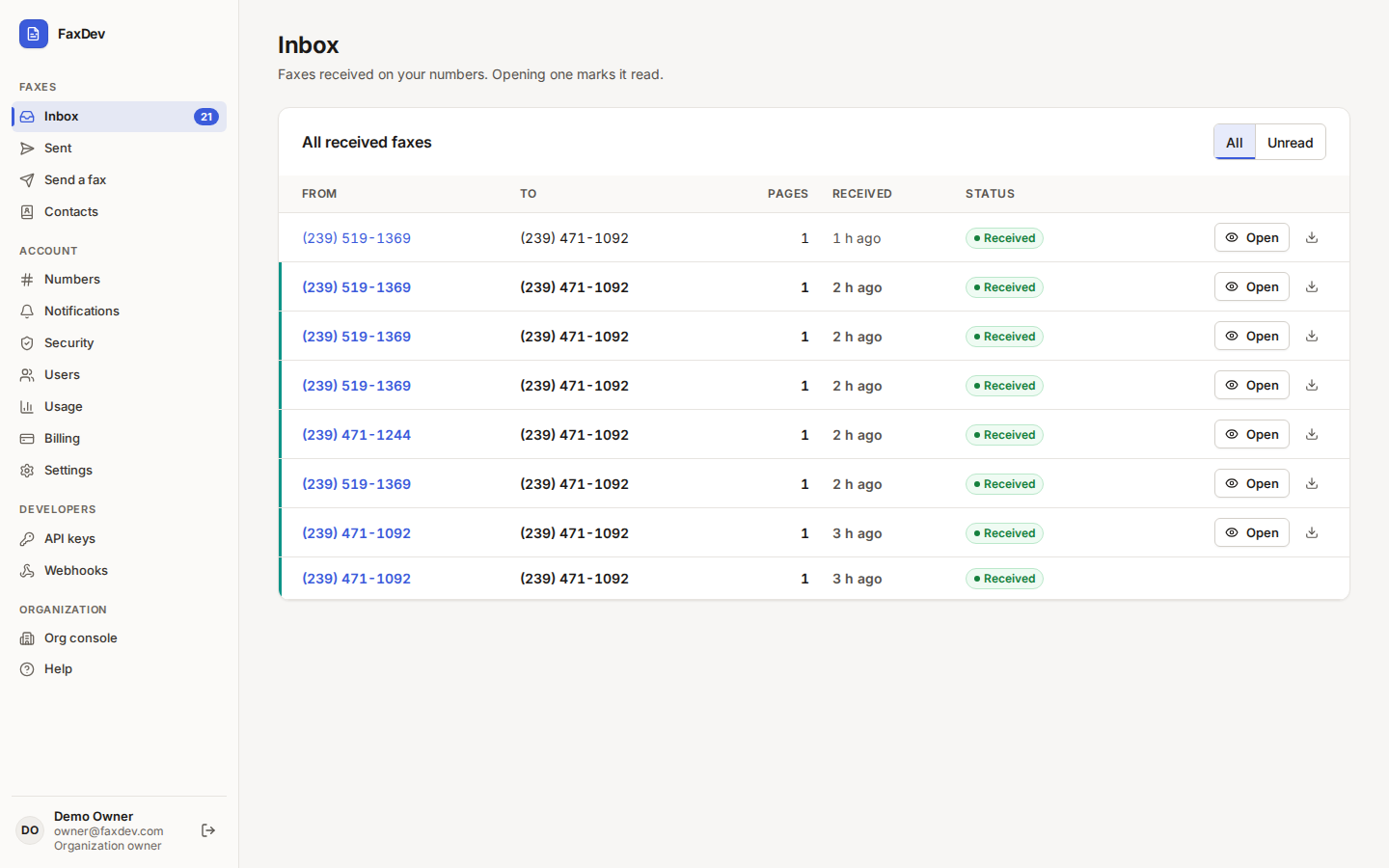
Inbox lists faxes received on your numbers, newest first. Unread faxes are bold with a colored bar; opening one marks it read. Switch between All and Unread at the top right.
 Tap to enlarge (opens in a new tab)
The inbox: who sent it, to which of your numbers, pages, when, and status.
Tap to enlarge (opens in a new tab)
The inbox: who sent it, to which of your numbers, pages, when, and status.
- Choose the sender's number (or Open) to see the fax.
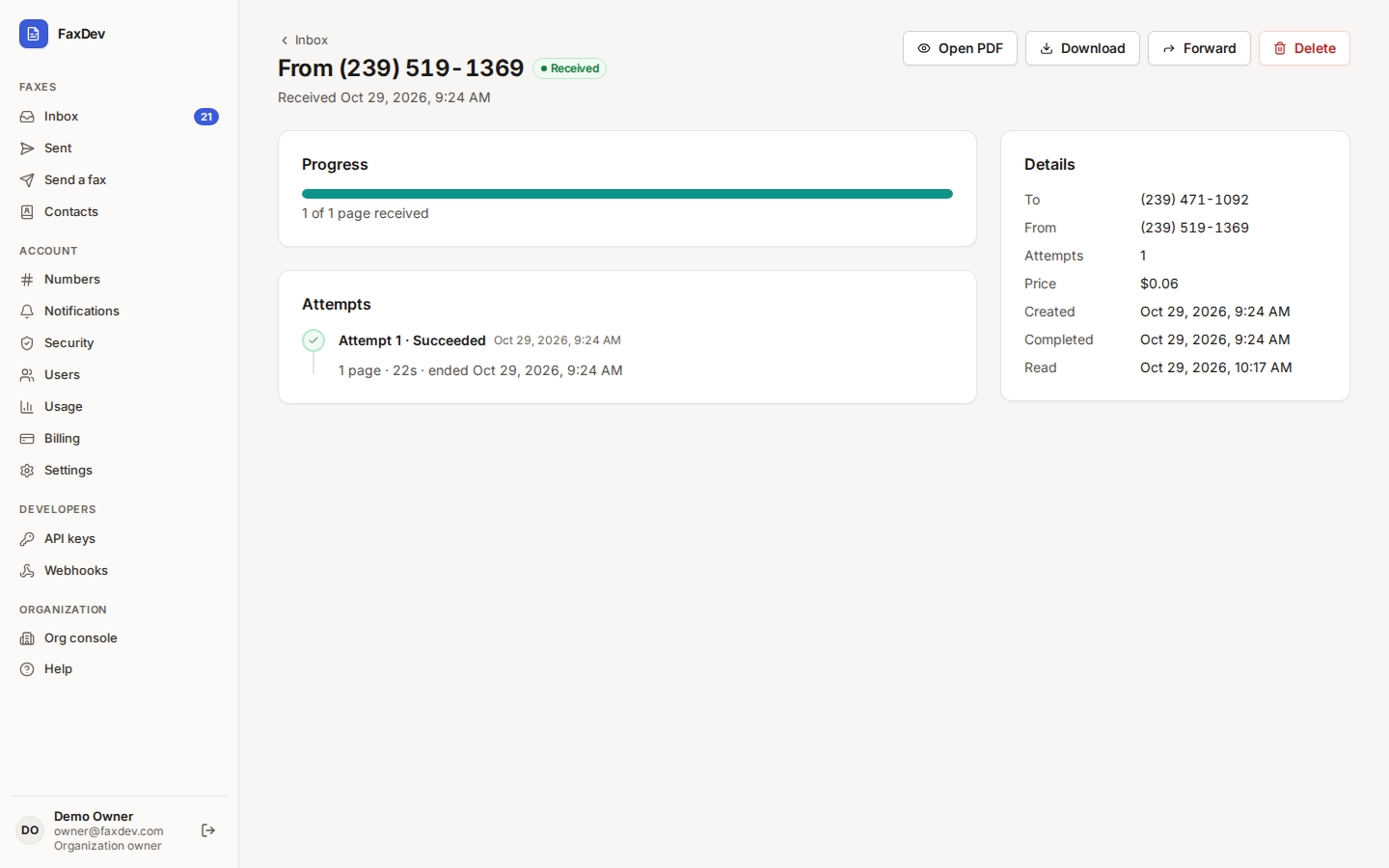
- On the fax page, choose Open PDF to view it in the browser or Download to save it. The download button on the inbox row saves it directly.
 Tap to enlarge (opens in a new tab)
A received fax: progress, attempts, and details such as price and the time you read it.
Tap to enlarge (opens in a new tab)
A received fax: progress, attempts, and details such as price and the time you read it.
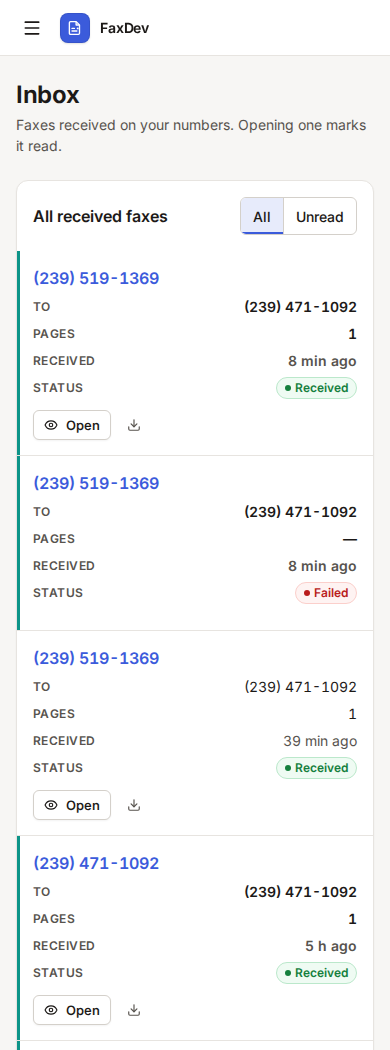
The inbox works on a phone too:
 Tap to enlarge (opens in a new tab)
On a phone each fax is a card with Open and download.
Tap to enlarge (opens in a new tab)
On a phone each fax is a card with Open and download.
A Failed inbound row means a call reached your number but no complete fax arrived; there is nothing to open.
Send a fax
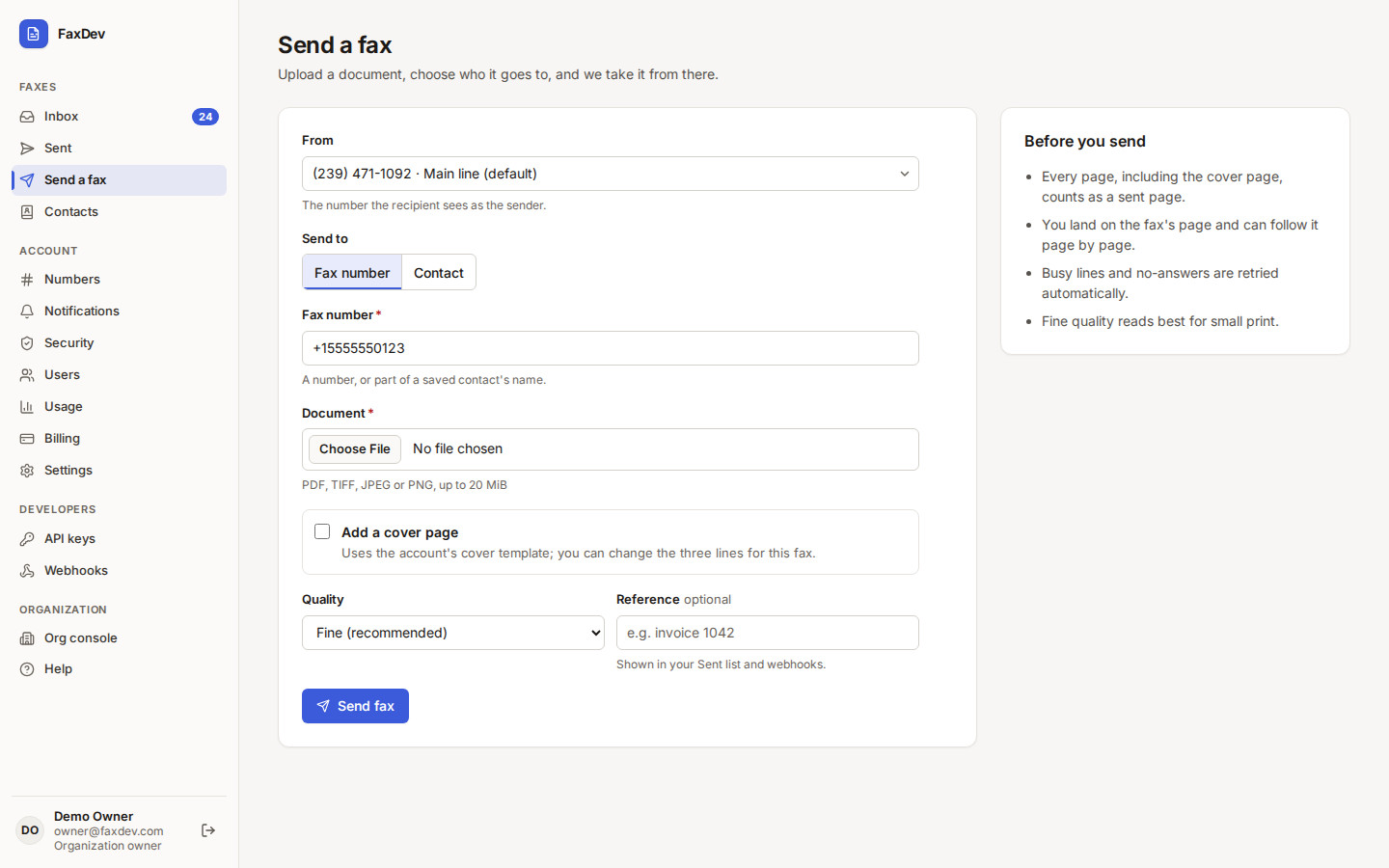
- Open Send a fax.
- From: pick the number the recipient sees as the sender (your default number is preselected).
- Send to: choose Fax number and type the number in international format (for example
+15555550123), or choose Contact and pick one from your address book. - Document: choose a PDF, TIFF, JPEG or PNG file, up to 20 MiB.
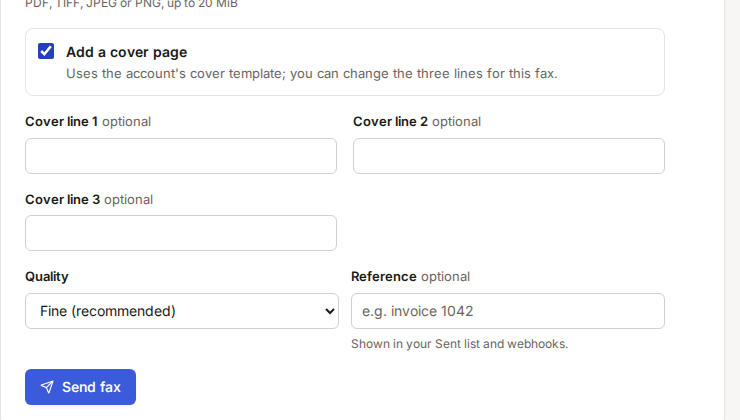
- Optionally tick Add a cover page. It uses the account's cover template; you can change the three lines for this fax.
- Quality: Fine (recommended) reads best for small print; Standard is faster.
- Optionally add a Reference (for example an invoice number). It is shown in your Sent list and in webhooks.
- Choose Send fax. You land on the fax's page and can follow it page by page.
 Tap to enlarge (opens in a new tab)
Send a fax. Every page, including the cover page, counts as a sent page.
Tap to enlarge (opens in a new tab)
Send a fax. Every page, including the cover page, counts as a sent page.
 Tap to enlarge (opens in a new tab)
Cover page lines for this fax only.
Tap to enlarge (opens in a new tab)
Cover page lines for this fax only.
 Tap to enlarge (opens in a new tab)
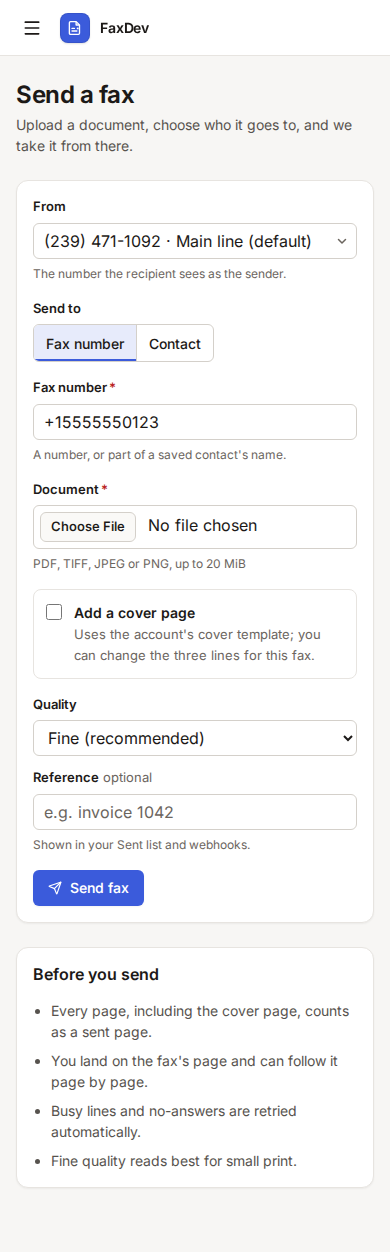
Sending from a phone.
Tap to enlarge (opens in a new tab)
Sending from a phone.
Busy lines and no-answers are retried automatically. If the account has no number yet, the page says so: ask your administrator or provider to assign one.
Track sent faxes
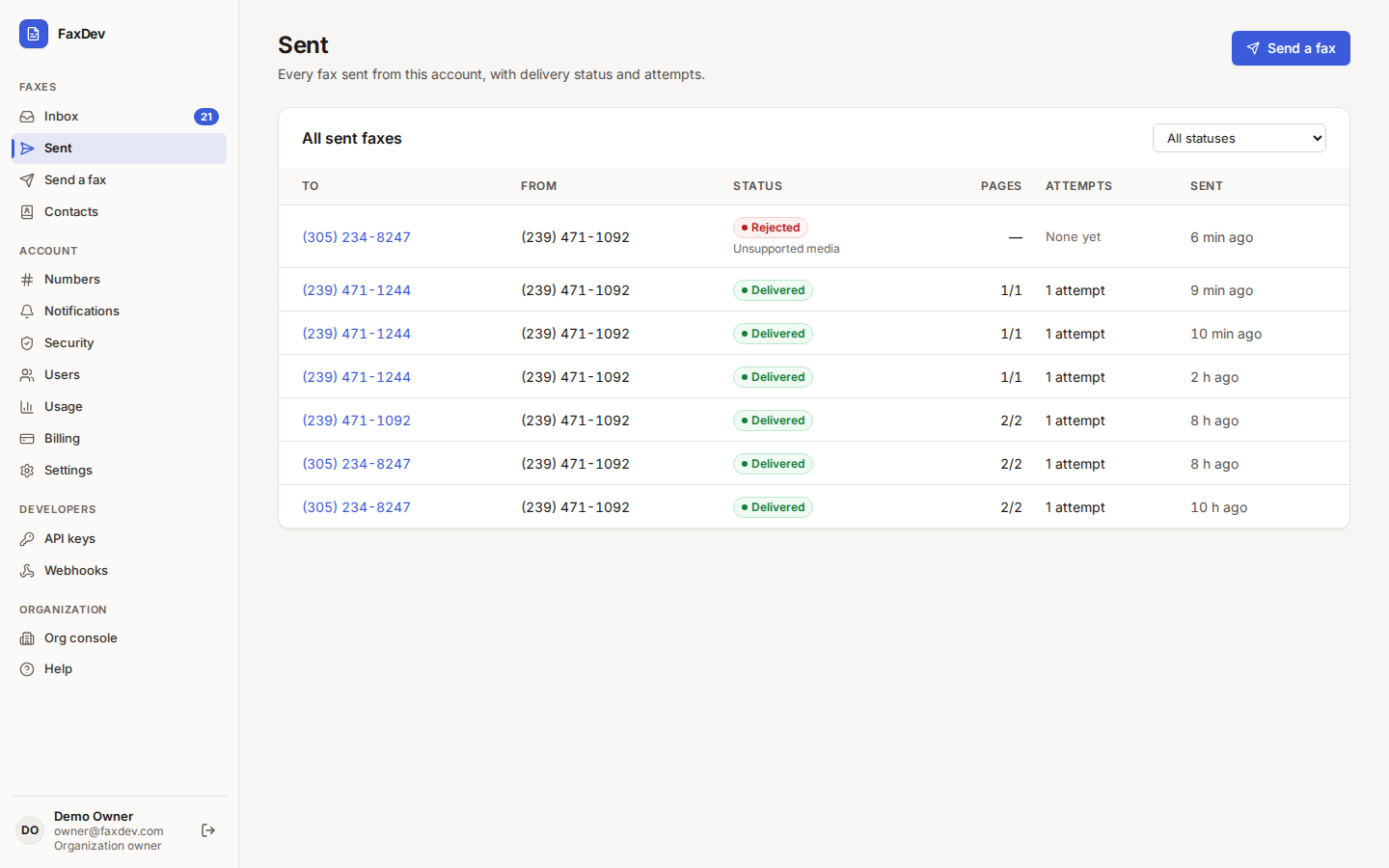
Sent lists every fax sent from the account with its status, pages delivered, attempts and time. Filter by status at the top right. Open a fax for its attempts and details.
 Tap to enlarge (opens in a new tab)
Sent faxes, with status, pages, attempts and time.
Tap to enlarge (opens in a new tab)
Sent faxes, with status, pages, attempts and time.
A Caller ID not guaranteed badge means the fax was delivered over an alternate route because every primary route failed; the recipient may not have seen your number as the sender. Your administrator controls this with Allow the failover route.
Contacts
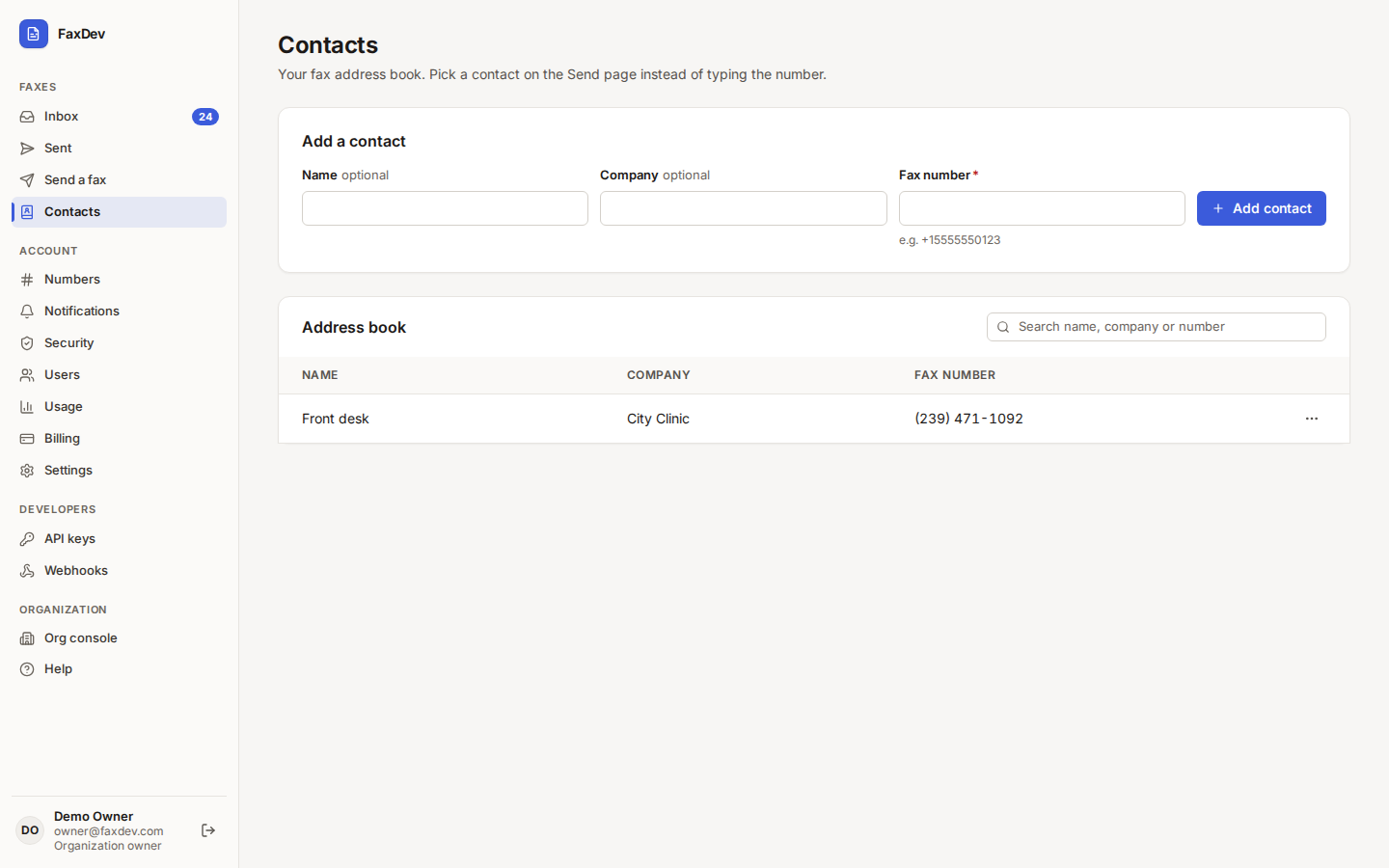
Contacts is your fax address book. Add a Name (optional), Company (optional) and Fax number, then choose Add contact. Search by name, company or number; the row menu edits or deletes a contact. On Send a fax, choose Contact to pick one instead of typing the number.
 Tap to enlarge (opens in a new tab)
Your address book.
Tap to enlarge (opens in a new tab)
Your address book.
Numbers and inbound email
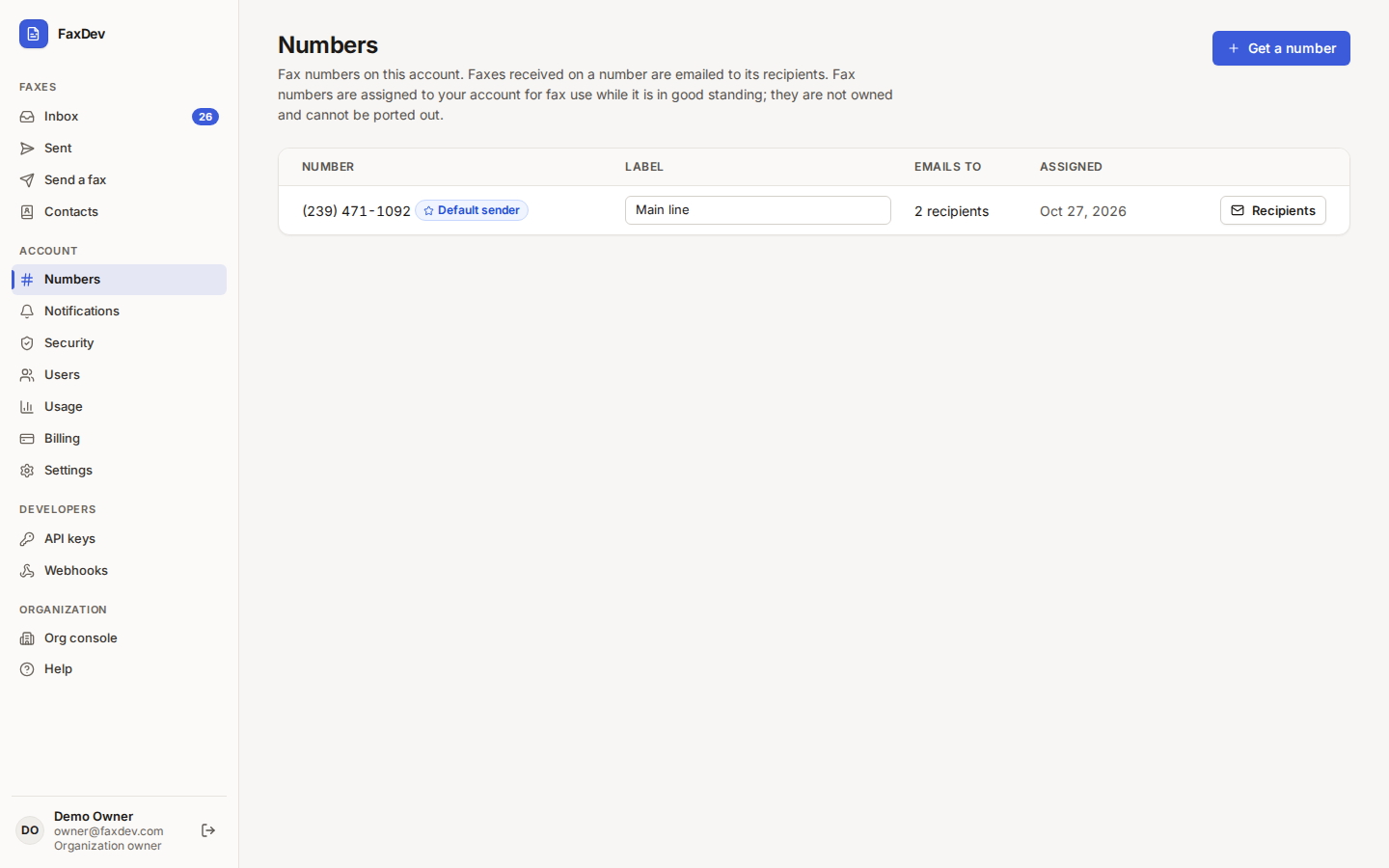
Numbers lists the fax numbers on the account. The Default sender badge marks the number used when a fax does not name a sender. Account admins can:
- Label a number (type in the label field) so your team can tell them apart.
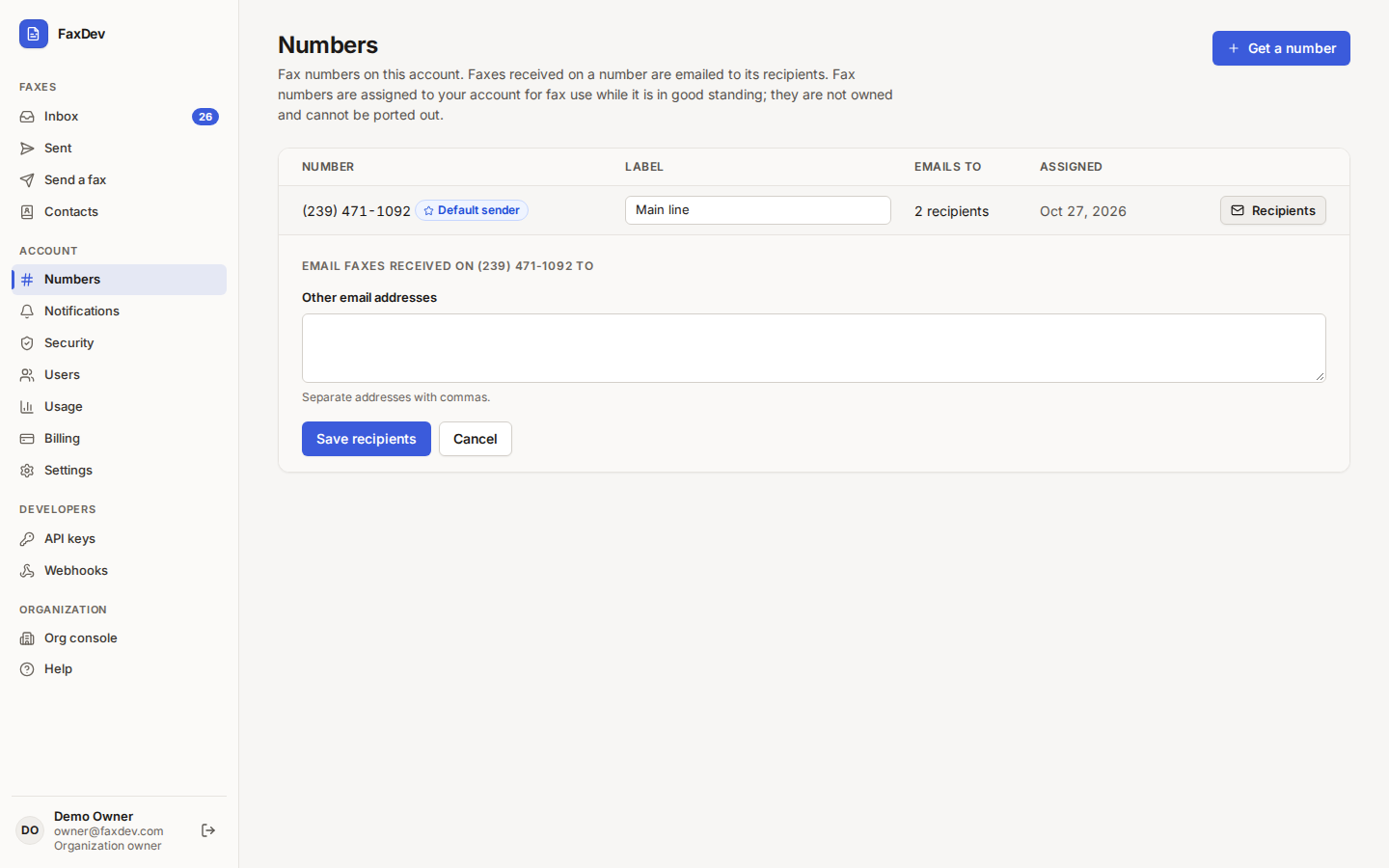
- Choose Recipients to pick who receives an email when a fax arrives on that number: tick Users on this account and add Other email addresses separated by commas, then Save recipients.
 Tap to enlarge (opens in a new tab)
Your numbers. New numbers are assigned by your provider.
Tap to enlarge (opens in a new tab)
Your numbers. New numbers are assigned by your provider.
 Tap to enlarge (opens in a new tab)
Who is emailed when a fax arrives on this number.
Tap to enlarge (opens in a new tab)
Who is emailed when a fax arrives on this number.
Whether the email carries the PDF or only a link is set under Privacy.
Notifications
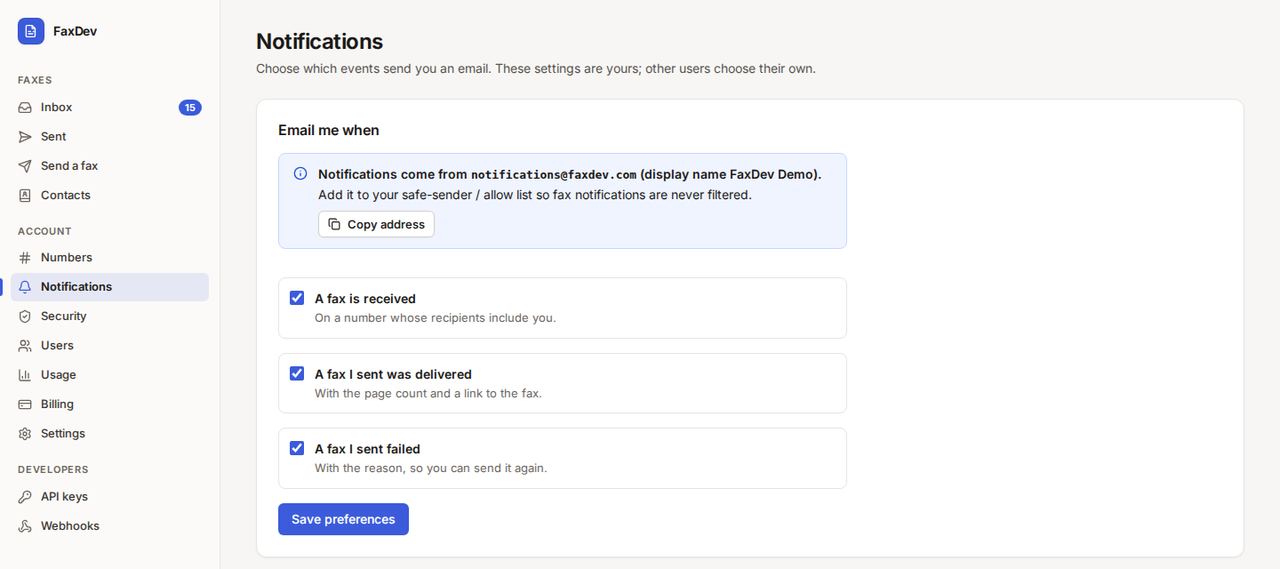
Notifications are your own: other users choose theirs. Tick the events that should email you and choose Save preferences:
- A fax is received (on a number whose recipients include you)
- A fax I sent was delivered (with the page count and a link)
- A fax I sent failed (with the reason, so you can send it again)
 Tap to enlarge (opens in a new tab)
Your email notifications. Add the sender address shown to your safe-sender list.
Tap to enlarge (opens in a new tab)
Your email notifications. Add the sender address shown to your safe-sender list.
Users and roles
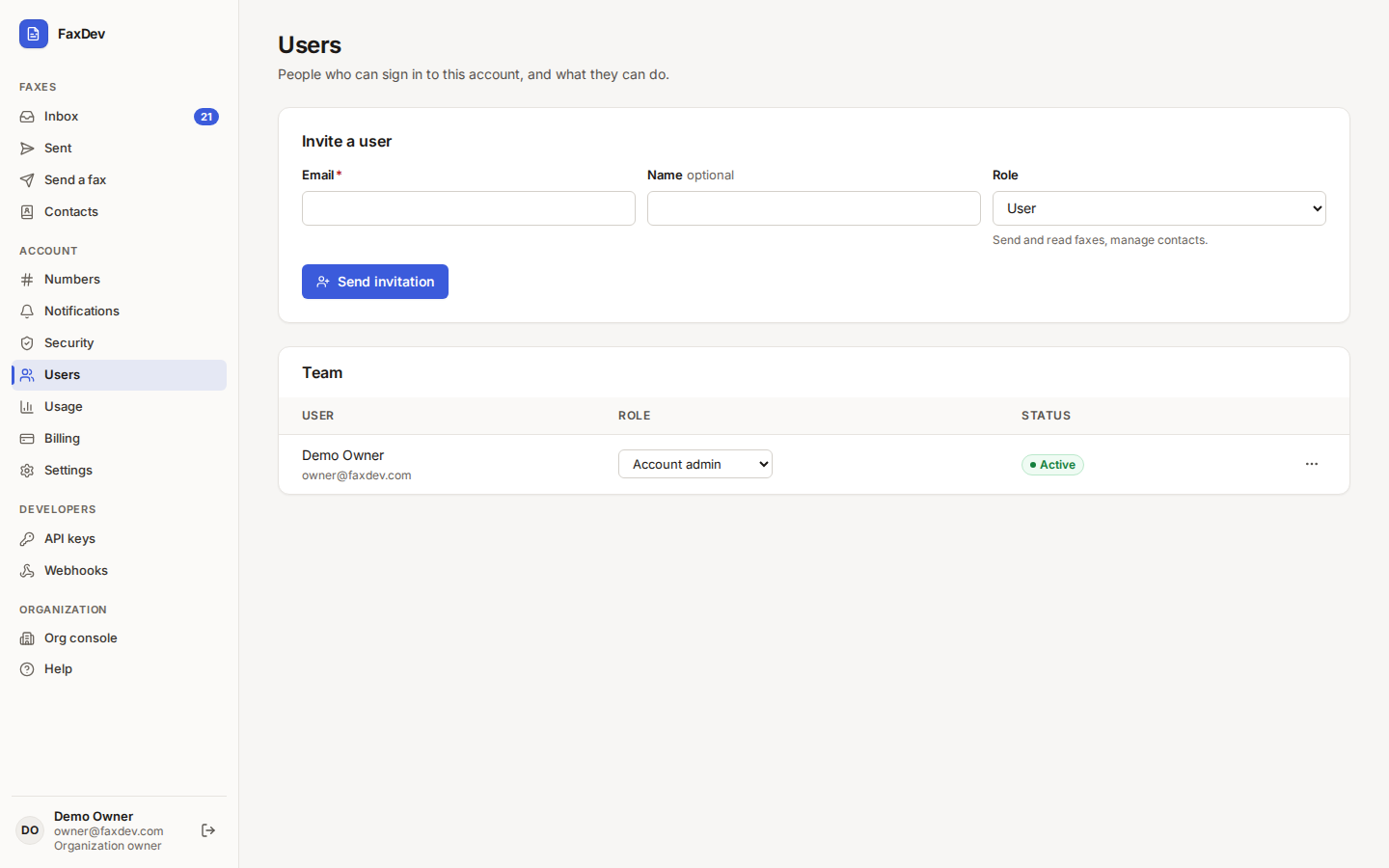
Account admins invite people and set their role on Users.
- Enter the person's Email and, optionally, Name.
- Pick the Role (see below) and choose Send invitation. They receive an email to set their password.
- In Team, change a role from the dropdown. The row menu offers Limit number access (for users and read-only members: only the numbers you pick) and Disable user / Enable user. A disabled user is signed out and cannot sign in; their faxes stay on the account.
 Tap to enlarge (opens in a new tab)
Invite a user and manage the team.
Tap to enlarge (opens in a new tab)
Invite a user and manage the team.
| Role | Can |
|---|---|
| Account admin | Everything on this account, including users, API keys, webhooks, billing and settings |
| User | Send and read faxes, manage contacts |
| Read only | Read faxes only |
Usage and billing
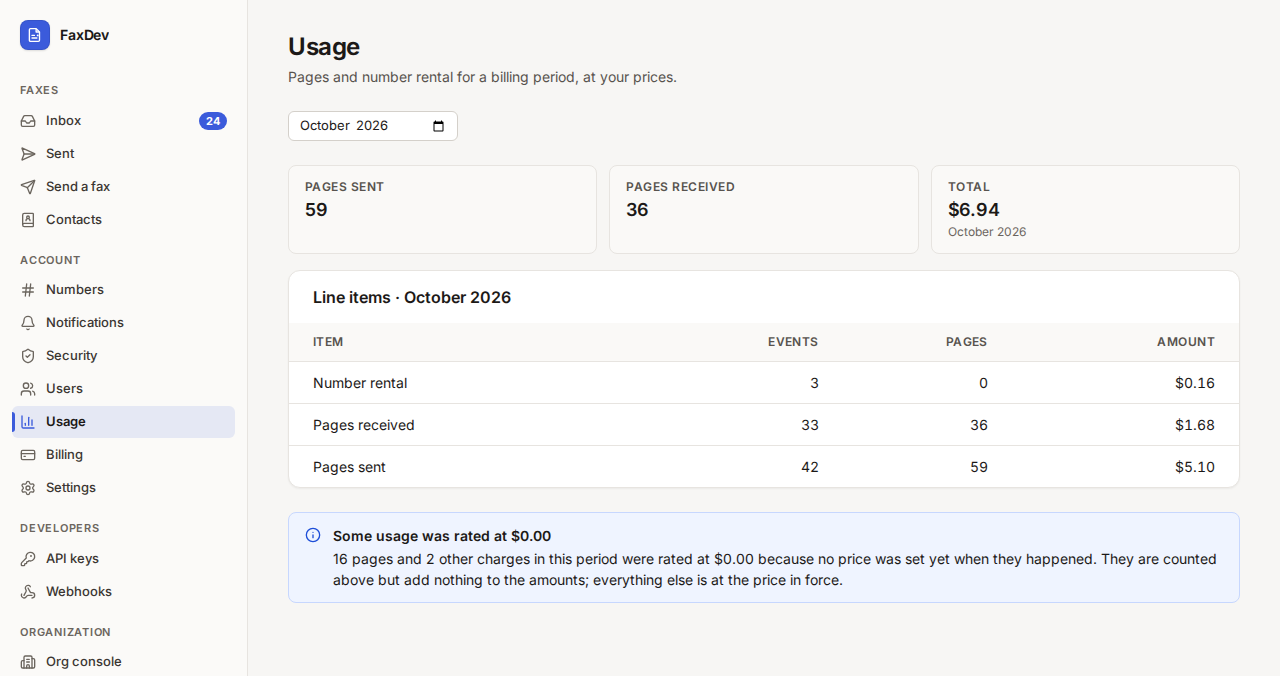
Usage shows pages sent, pages received and number rental for a billing period, at your prices, with a total.
 Tap to enlarge (opens in a new tab)
Usage for the selected month.
Tap to enlarge (opens in a new tab)
Usage for the selected month.
Billing depends on how your account is billed:
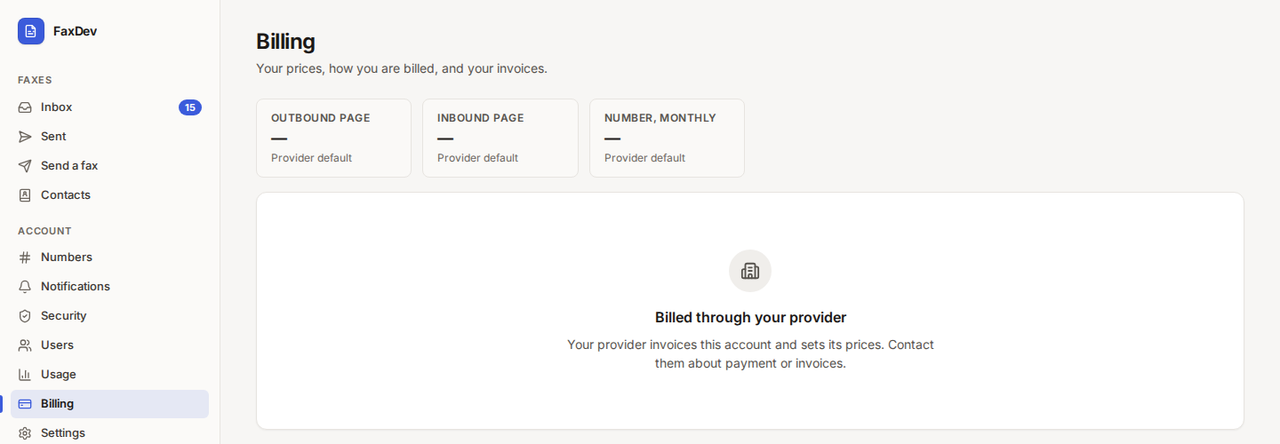
- Billed through your provider: your provider invoices the account and sets its prices. Contact them about payment or invoices.
- Billed directly: your plan, collection method, balance, Card on file, Add funds (for a prepaid balance) and your Invoices. See the direct guide.
 Tap to enlarge (opens in a new tab)
An account billed through its provider.
Tap to enlarge (opens in a new tab)
An account billed through its provider.
Account settings
Settings holds the defaults for everyone on the account (account admins only).
 Tap to enlarge (opens in a new tab)
Account settings. The email-to-fax address is partly hidden in this screenshot.
Tap to enlarge (opens in a new tab)
Account settings. The email-to-fax address is partly hidden in this screenshot.
Cover page template
Three lines (for example company name, address or phone, confidentiality notice) and Include the organization logo. Senders can change the three lines for a single fax. Choose Save cover page.
Sending defaults and retention
- Default sender number: used when a fax does not name a sender.
- Keep fax documents for: days. Documents are deleted after this; the fax record stays. The default is 90 days; it cannot go below a minimum set for the account (for example six years in HIPAA mode) or above seven years.
Choose Save defaults.
Privacy: attachments or link-only
Fax-received email decides what the inbound email carries:
| Option | What recipients get |
|---|---|
| Attach the PDF when it fits | The fax as a PDF attachment (a link if it is too large) |
| Link only (sign-in required) | A link to the console; recipients sign in to view it, and every view is logged |
The panel also shows limits set for the account by the platform: Minimum retention, Legal hold and Document access (short-lived links, or logged single-use access). In HIPAA mode, link-only and logged access are locked on.
Notification defaults for new users sets which emails new users start with; each user can change their own.
Email-to-fax
Send a fax by email: attach the document and put the destination fax number in the subject, then send it to the account's address shown under Send documents to (Copy copies it).
- List the Allowed senders, one address per line, and choose Save allowed senders. Mail from anyone else, or mail that fails sender authentication, is refused.
- The status badge turns on once at least one allowed sender is listed and the feature is enabled for your service.
Note Email-to-fax is shown as Off until your provider enables the feature.
Security: two-step verification and sessions
Security is about your own sign-in, not the account's.
- Choose Turn on two-step verification.
- Scan the QR code with an authenticator app (or show the setup key and type it) and enter the 6-digit code.
- Save the ten recovery codes: they are shown once, and each works once if you lose your phone.
From then on, sign-in asks for a code after your password ("Lost your phone? Use a recovery code" takes a recovery code). Five wrong codes in a minute pause the step for about a minute.
 Tap to enlarge (opens in a new tab)
Two-step verification for your own login.
Tap to enlarge (opens in a new tab)
Two-step verification for your own login.
Sessions. Your administrator or provider may set an idle sign-out, a longest session and a recent sign-in
window for viewing documents. In HIPAA mode you are signed out after 15 minutes of inactivity and must have signed
in within the last 15 minutes to view or download a fax. If you are asked to sign in again (/reauth), enter your
password to continue. There is no list of active sessions to sign out of yet.
Developers: API keys and webhooks
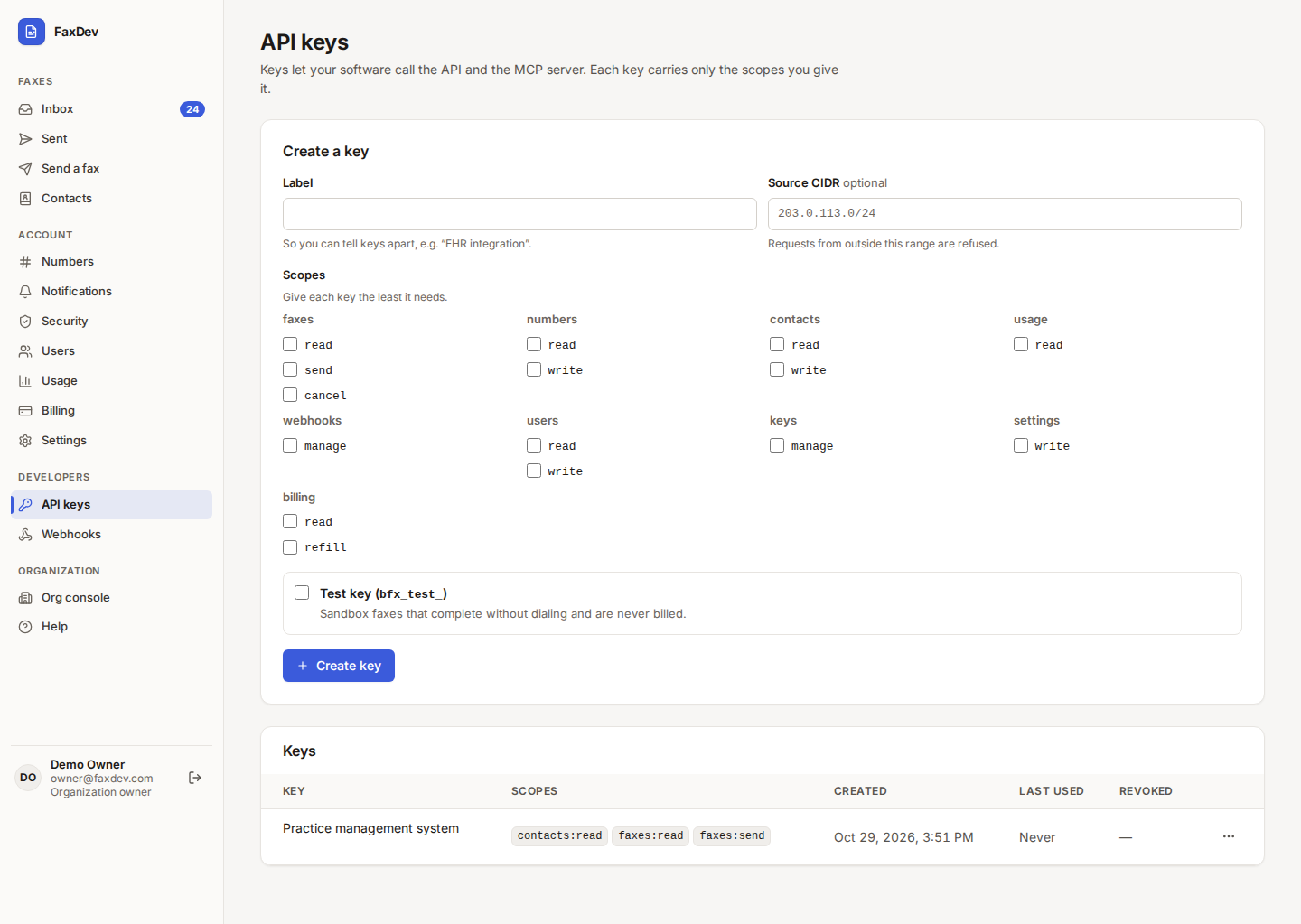
API keys (account admins) let your software send and read faxes through the API and the MCP server.
- Enter a Label and optionally a Source CIDR (requests from outside this range are refused).
- Tick only the Scopes the key needs.
- Tick Test key for a sandbox key: its faxes complete without dialing and are never billed.
- Choose Create key and copy it at once: it is shown only once. Creating a key may ask for your password again.
 Tap to enlarge (opens in a new tab)
Account API keys. The key itself is never shown again after creation.
Tap to enlarge (opens in a new tab)
Account API keys. The key itself is never shown again after creation.
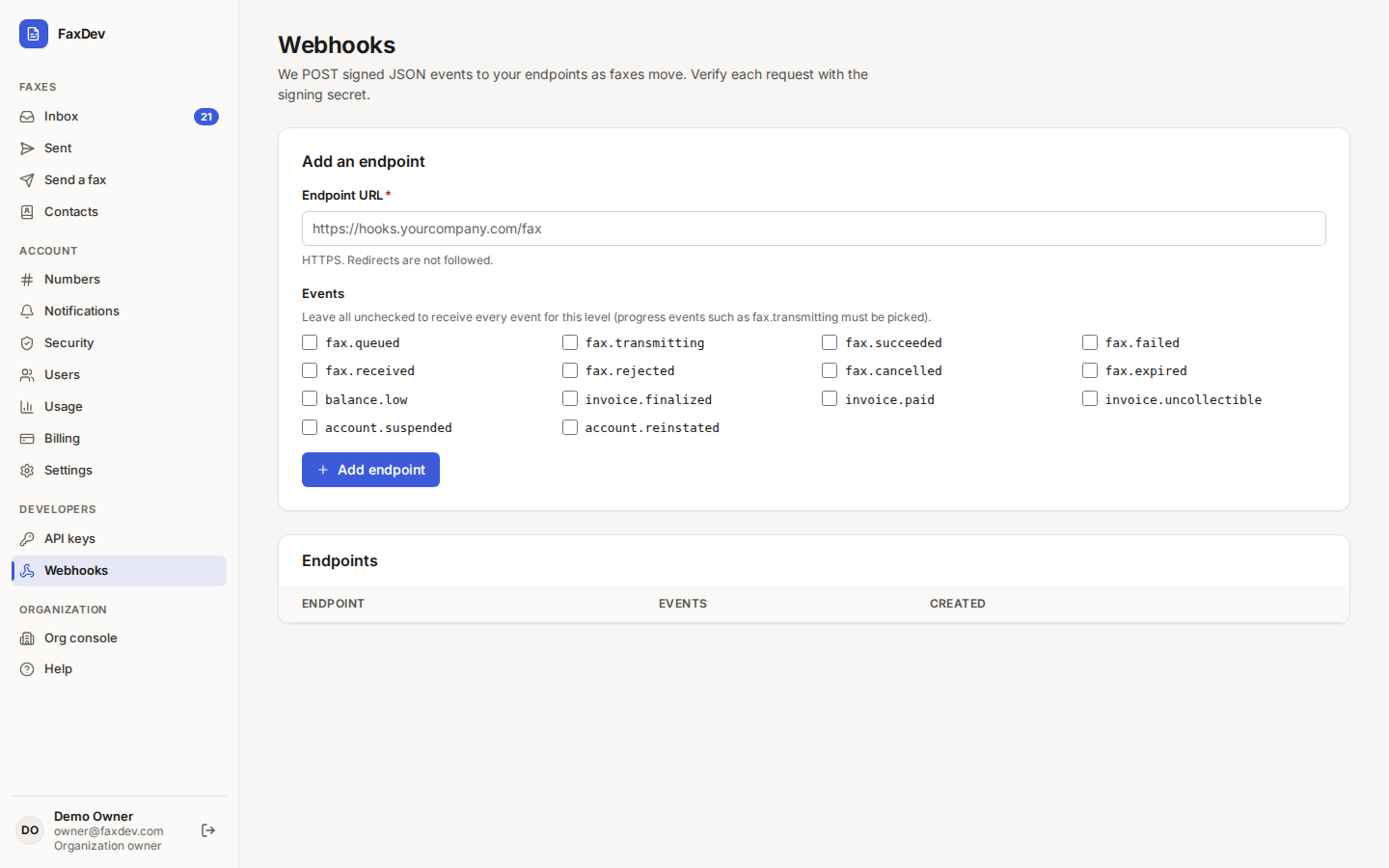
Webhooks send signed JSON events to your HTTPS endpoint as faxes move. Enter the Endpoint URL, pick events
(or leave all unchecked for every event of the account; progress events such as fax.transmitting must be picked),
choose Add endpoint, and verify each request with the signing secret.
 Tap to enlarge (opens in a new tab)
Account webhooks.
Tap to enlarge (opens in a new tab)
Account webhooks.
Reference
Fax statuses
| Status | Meaning |
|---|---|
| Queued | Accepted, waiting to be prepared |
| Rendering | Being converted for faxing |
| Admitted | Ready, waiting for a line |
| Dialing | Calling the recipient |
| Negotiating | Answered; the fax machines are agreeing on settings |
| Transmitting | Pages are going through |
| Retrying | An attempt failed; another is scheduled automatically |
| Failover route | Being delivered over an alternate route |
| Delivered | Sent successfully (outbound) |
| Received | Arrived successfully (inbound) |
| Failed | Did not complete; the reason is shown under the status |
| Rejected | Refused before sending, for example a limit or billing stop |
| Cancelled | Stopped by a user or the API |
| Expired | Could not be delivered in time |
Roles and pages
| Page | Account admin | User | Read only |
|---|---|---|---|
| Inbox, Sent, fax pages | ✓ | ✓ | ✓ |
| Send a fax | ✓ | ✓ | |
| Contacts | ✓ | ✓ (edit) | ✓ (view) |
| Numbers (labels, recipients) | ✓ | view | view |
| Notifications, Security (own) | ✓ | ✓ | ✓ |
| Users, Settings, Billing, API keys, Webhooks | ✓ | ||
| Usage | ✓ | ✓ | ✓ |
Send form fields
| Field | Required | Notes |
|---|---|---|
| From | ✓ | One of the account's numbers |
| Fax number or Contact | ✓ | International format, e.g. +15555550123 |
| Document | ✓ | PDF, TIFF, JPEG or PNG, up to 20 MiB |
| Add a cover page | Three optional lines | |
| Quality | ✓ | Fine (recommended) or Standard |
| Reference | Shown in Sent and webhooks |
API key scopes (account level)
| Group | Scopes |
|---|---|
| faxes | read, send, cancel |
| numbers | read, write |
| contacts | read, write |
| usage | read |
| webhooks | manage |
| users | read, write |
| keys | manage |
| settings | write |
| billing | read, refill |